지역 LLM
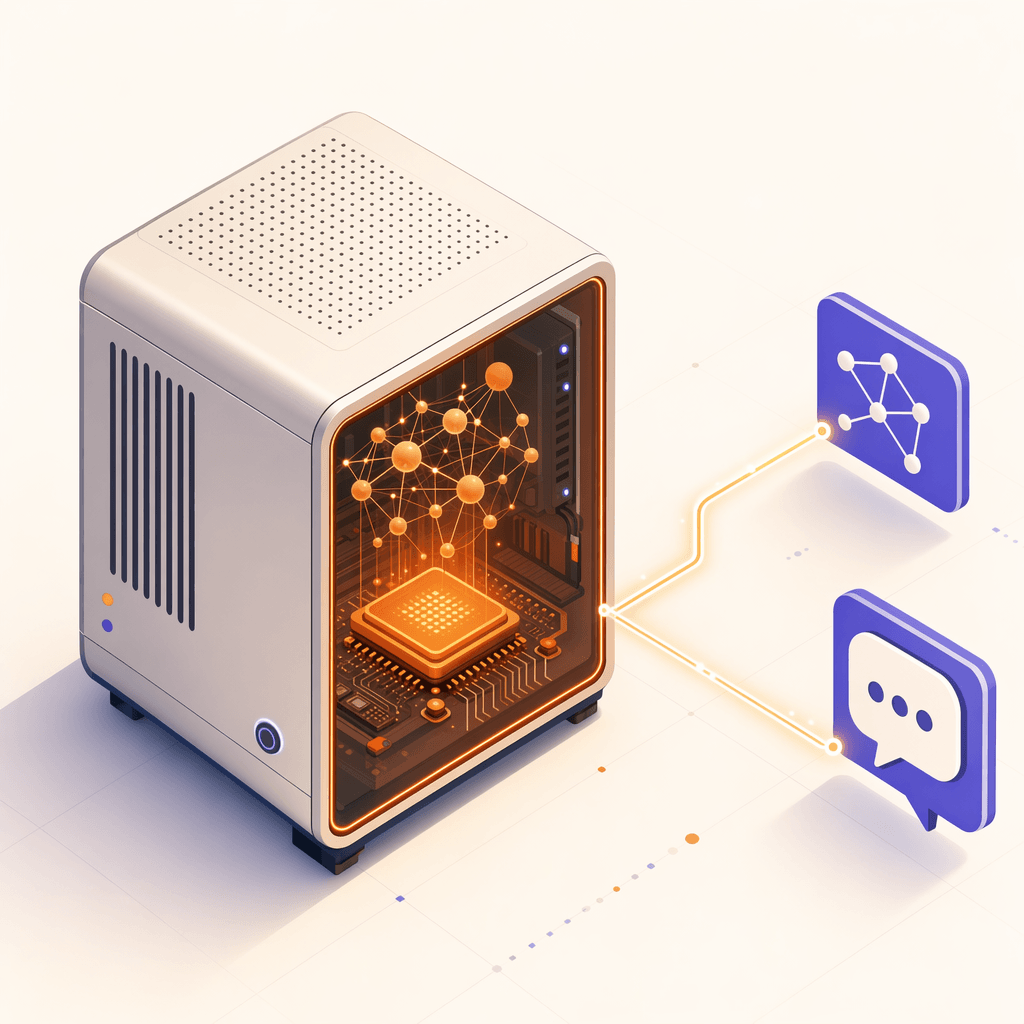
LLM(대형 언어 모델)을 실행하면 로컬에서 데이터 개인 정보를 보호하고 API 비용을 절감하며 오프라인 추론 기능을 제공합니다. Ubuntu 26.04은 로컬 LLM을 실행하기 위한 탁월한 환경을 제공합니다. 이 문서에서는 가장 널리 사용되는 로컬 모델 런타임 도구와 권장 모델을 다룹니다.
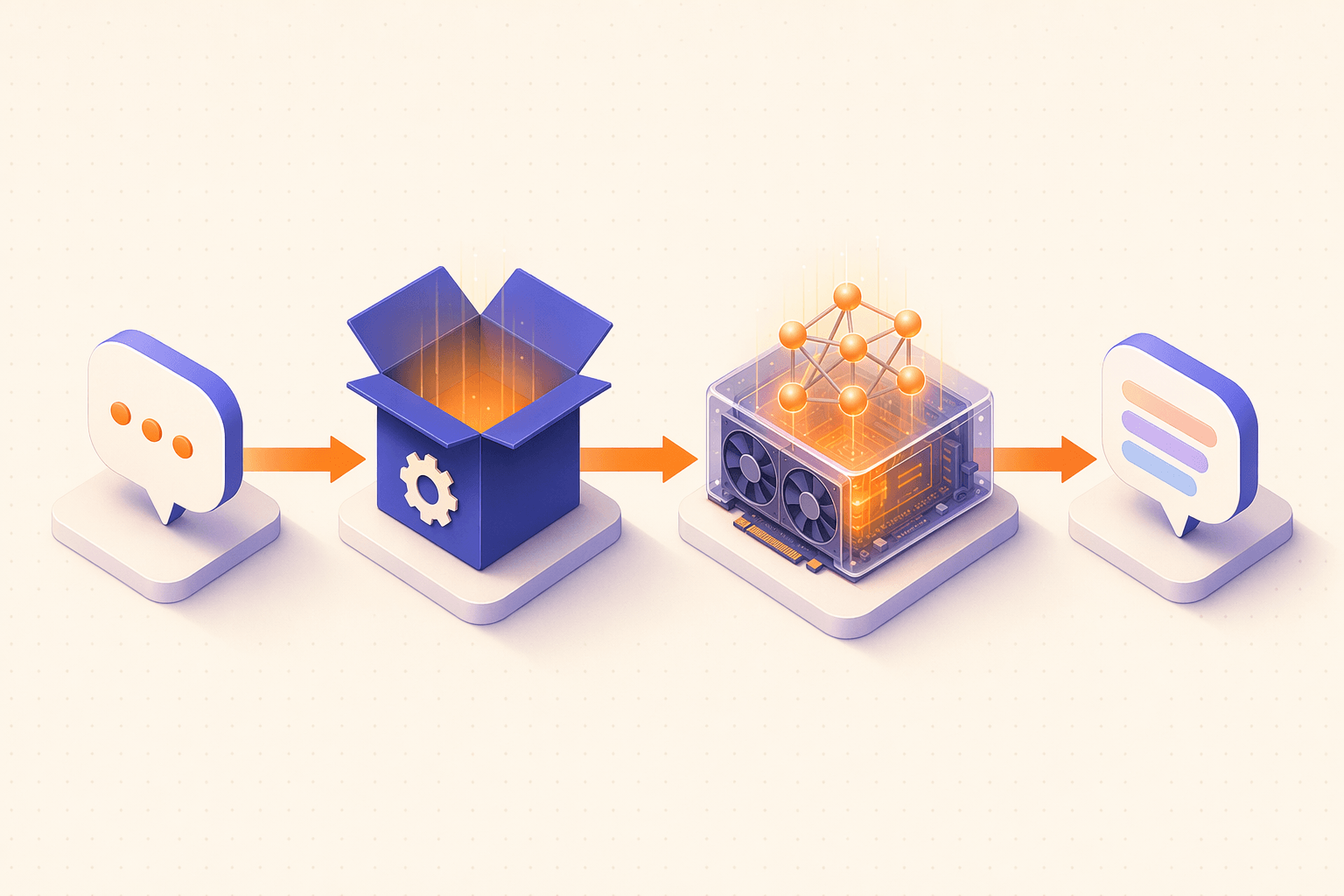
터미널, WebUI 또는 OpenAI 호환 클라이언트에서 텍스트를 보냅니다.
Ollama / llama.cpp / LM Studio가 요청을 모델로 라우팅하고 컨텍스트를 관리합니다.
가중치가 VRAM에 상주하며 토큰을 출력합니다. CPU만으로도 동작하지만 약 한 자릿수 느립니다.
생성되는 대로 토큰이 반환됩니다. 데이터는 머신을 떠나지 않습니다.
데스크탑에서 실행하는 대신 전용 “AI 박스” 어플라이언스를 구축하고 싶으십니까? 2026년 6월 Canonical는 Ubuntu Core 26 + gemma4 스냅을 기반으로 하는 공식 참조를 게시하여 OpenAI 호환 API(:8336/v1) 및 WebUI(:8337)를 노출했습니다. 최소 부트스트랩은 출시 후 뉴스에 문서화되어 있습니다.
Ollama
Ollama은 현재 가장 인기 있는 로컬 모델 런타임 프레임워크로, 광범위한 오픈 소스 모델을 지원하여 매우 간단한 설치 및 사용 경험을 제공합니다.
Ollama 설치
# One-click installation (recommended)
curl -fsSL https://ollama.com/install.sh | bash

# Verify installation
ollama --version

# Check Ollama service status
systemctl status ollama
# Manual installation (if the auto script doesn't work)
# Download and extract the official tgz package to /usr
curl -L https://ollama.com/download/ollama-linux-amd64.tgz -o /tmp/ollama-linux-amd64.tgz
sudo tar -C /usr -xzf /tmp/ollama-linux-amd64.tgz
# Create Ollama user
sudo useradd -r -s /bin/false -m -d /usr/share/ollama ollama
# Create systemd service (use sudo tee to write a root-owned file)
sudo tee /etc/systemd/system/ollama.service > /dev/null << 'EOF'
[Unit]
Description=Ollama Service
After=network-online.target
[Service]
ExecStart=/usr/bin/ollama serve
User=ollama
Group=ollama
Restart=always
RestartSec=3
Environment="HOME=/usr/share/ollama"
[Install]
WantedBy=default.target
EOF
sudo systemctl daemon-reload
sudo systemctl enable ollama
sudo systemctl start ollama모델 끌어오기 및 실행
# Pull a model (downloads the model file on first run)
ollama pull llama3.2
ollama pull qwen2.5:14b
ollama pull deepseek-r1:14b

# Run a model and start chatting
ollama run llama3.2

# Run a specific model size
ollama run qwen2.5:7b
ollama run qwen2.5:14b
ollama run qwen2.5:32b

# List downloaded models
ollama list

# View model details
ollama show qwen2.5:14b

# Delete a model
ollama rm llama3.2
API 사용
Ollama은 기본적으로 http://localhost:11434에서 수신 대기하는 OpenAI 형식과 호환되는 REST API를 제공합니다.
# Generate text (Generate API)
curl http://localhost:11434/api/generate -d '{
  "model": "qwen2.5:14b",
  "prompt": "Explain Python decorators",
  "stream": false
}'

# Chat API (conversational format)
curl http://localhost:11434/api/chat -d '{
  "model": "qwen2.5:14b",
  "messages": [
    {"role": "system", "content": "You are a Linux expert"},
    {"role": "user", "content": "How do I check the Ubuntu system version?"}
  ],
  "stream": false
}'

# OpenAI-compatible API
curl http://localhost:11434/v1/chat/completions -d '{
  "model": "qwen2.5:14b",
  "messages": [
    {"role": "user", "content": "Hello"}
  ]
}'

# List available models
curl http://localhost:11434/api/tags
Python 사용 예
# Ubuntu 26.04 blocks system-wide pip installs (PEP 668); install inside a virtual environment
python3 -m venv ~/ollama-env
source ~/ollama-env/bin/activate

# Install the ollama Python library
pip install ollama
import ollama
response = ollama.chat(model='qwen2.5:14b', messages=[
{'role': 'user', 'content': 'Write a quicksort algorithm in Python'},
])
print(response['message']['content'])Ollama 구성
# Change model storage path (default: ~/.ollama/models)
sudo systemctl edit ollama
# Add the following:
# [Service]
# Environment="OLLAMA_MODELS=/data/ollama/models"

# Allow remote access (default is local only)
sudo systemctl edit ollama
# [Service]
# Environment="OLLAMA_HOST=0.0.0.0:11434"

# Set GPU layers
# Environment="OLLAMA_NUM_GPU=999"

# Restart service to apply changes
sudo systemctl restart ollama
추천 모델
| 모델 | 매개변수 | VRAM 필요 | 하이라이트 |
|---|---|---|---|
qwen2.5:7b | 7B | 6GB | 중국어 실력이 뛰어나 일상채팅에 적합 |
qwen2.5:14b | 14B | 10GB | 포괄적인 중국어, 좋은 코딩 |
qwen2.5-coder:7b | 7B | 6GB | 코드 생성 및 이해에 중점을 둡니다. |
llama3.2:3b | 3B | 3GB | 가볍고 빠르다 |
llama3.1:8b | 8B | 6GB | 우수한 영어실력 |
deepseek-r1:14b | 14B | 10GB | 강력한 추론 |
mistral:7b | 7B | 6GB | 유럽 모델, 다국어 |
gemma2:9b | 9B | 7GB | Google 오픈소스 모델 |
phi3:14b | 14B | 10GB | 마이크로소프트 연구 모델 |
nomic-embed-text | - | 1GB | 텍스트 임베딩 모델 |
중국어 사용자의 경우 Qwen 2.5 시리즈를 적극 권장합니다. 7B 버전은 8GB VRAM이 있는 GPU에 적합한 반면, 14B 버전은 12GB VRAM에서 탁월한 성능을 발휘합니다. 코드 전용 작업의 경우 qwen2.5-coder이 최선의 선택입니다.
LM Studio
LM Studio은 모델 다운로드, 채팅 및 로컬 API 서버를 제공하는 크로스 플랫폼 그래픽 로컬 모델 관리 도구입니다.
다운로드 및 설치
# Download LM Studio AppImage from the official site (get the latest link at https://lmstudio.ai/download)
# Replace the URL below with the actual download link from the official site
wget -O ~/LMStudio.AppImage "<latest AppImage download link from the official site>"

# Add execute permission
chmod +x ~/LMStudio.AppImage

# Move to application directory
mkdir -p ~/.local/bin
mv ~/LMStudio.AppImage ~/.local/bin/lmstudio

# Create desktop shortcut
# Note: .desktop Exec does not expand variables like $HOME; you must use an absolute path
# Replace YOUR_USER below with your username (the output of echo $USER)
cat > ~/.local/share/applications/lmstudio.desktop << 'EOF'
[Desktop Entry]
Name=LM Studio
Comment=Local LLM Management
Exec=/home/YOUR_USER/.local/bin/lmstudio --no-sandbox
Icon=lmstudio
Type=Application
Categories=Development;Science;
StartupNotify=true
EOF

# Launch LM Studio
~/.local/bin/lmstudio
종속성 설치
# LM Studio may require FUSE support (AppImage dependency)
sudo apt install -y libfuse2t64
GUI 사용법
LM Studio의 주요 기능 영역:
- 발견 — Hugging Face에서 GGUF 모델 검색 및 다운로드
- 채팅 — 모델을 로드하고 모델과 채팅합니다.
- 개발자 — OpenAI API 형식과 호환되는 로컬 API 서버를 시작합니다.
로컬 API 서버를 시작합니다:
개발자 탭에서 모델을 로드한 다음 “서버 시작”을 클릭하세요. 기본 주소는 http://localhost:1234입니다.
# Test LM Studio's local API
curl http://localhost:1234/v1/chat/completions -d '{
  "model": "loaded-model-name",
  "messages": [
    {"role": "user", "content": "Hello"}
  ]
}'LM Studio은 ~/.lmstudio/models/ 디렉터리에 모델 파일을 저장합니다. 대용량 모델 파일은 수십 GB를 소비할 수 있으므로 디스크 공간이 충분한지 확인하세요.
llama.cpp
llama.cpp은 순수 C/C++로 작성된 가장 낮은 수준의 로컬 추론 엔진으로, 매우 높은 성능으로 CPU 및 GPU 추론을 모두 지원합니다. Ollama의 백엔드는 llama.cpp도 사용합니다.
소스에서 빌드
# Install build dependencies
sudo apt install -y build-essential cmake git

# Clone the repository
git clone https://github.com/ggerganov/llama.cpp.git
cd llama.cpp

# Method 1: CPU-only build
cmake -B build
cmake --build build --config Release -j$(nproc)

# Method 2: Enable CUDA GPU acceleration (recommended, requires CUDA)
cmake -B build -DGGML_CUDA=ON
cmake --build build --config Release -j$(nproc)

# Method 3: Enable Vulkan GPU acceleration (works with AMD/Intel/NVIDIA)
sudo apt install -y libvulkan-dev
cmake -B build -DGGML_VULKAN=ON
cmake --build build --config Release -j$(nproc)
모델 다운로드
# llama.cpp uses GGUF format models
# Download from Hugging Face (Qwen 2.5 7B example)
mkdir -p ~/models
wget -O ~/models/qwen2.5-7b-q4_k_m.gguf \
  "https://huggingface.co/Qwen/Qwen2.5-7B-Instruct-GGUF/resolve/main/qwen2.5-7b-instruct-q4_k_m.gguf"
명령줄 추론
# Interactive chat
./build/bin/llama-cli \
  -m ~/models/qwen2.5-7b-q4_k_m.gguf \
  -ngl 999 \
  -c 4096 \
  --interactive \
  --color

# Start an OpenAI-compatible API server
./build/bin/llama-server \
  -m ~/models/qwen2.5-7b-q4_k_m.gguf \
  -ngl 999 \
  -c 4096 \
  --host 0.0.0.0 \
  --port 8080

# Parameter explanations:
# -m        Model file path
# -ngl 999  Use as many GPU layers as possible
# -c 4096   Context length
# --host    Listen address
# --port    Listen port
# Test the API server
curl http://localhost:8080/v1/chat/completions -d '{
"model": "qwen2.5",
"messages": [{"role": "user", "content": "Hello"}]
}'GGUF 모델 파일은 다양한 양자화 수준으로 제공됩니다. Q4_K_M은 품질과 파일 크기 사이의 적절한 균형을 이루고, Q5_K_M은 더 높은 품질이지만 더 큰 파일을 제공하며, Q8_0는 원래 정밀도에 가깝습니다. 일상적인 사용에는 Q4_K_M 또는 Q5_K_M를 권장합니다.
Jan
Jan은 친숙한 그래픽 인터페이스를 갖춘 오픈 소스 로컬 AI 채팅 클라이언트로, 여러 모델과 로컬 추론을 지원합니다.
Jan 설치
# Download Jan deb package
wget -O /tmp/jan.deb "https://app.jan.ai/download/latest/linux-amd64-deb"

# Install
sudo dpkg -i /tmp/jan.deb
sudo apt install -f -y

# Launch Jan
jan
# Or install via AppImage
wget -O ~/jan.appimage "https://app.jan.ai/download/latest/linux-amd64-appimage"
chmod +x ~/jan.appimage
~/jan.appimage인터페이스 사용법
Jan의 주요 기능:
- 허브 — 추천 모델 검색 및 다운로드(원클릭 다운로드)
- 채팅 — 모델과의 채팅, 다중 세션 지원
- 설정 — 모델 매개변수, GPU 가속 등을 구성합니다.
Jan은 사용자 정의 GGUF 모델 파일 가져오기를 지원합니다. 모델 파일을 ~/jan/models/ 디렉터리에 배치합니다.
# Jan default data directory
ls ~/jan/

# Manually import a model
mkdir -p ~/jan/models/my-custom-model
cp ~/models/qwen2.5-7b-q4_k_m.gguf ~/jan/models/my-custom-model/
Jan은 로컬 API 서버도 제공합니다. 활성화되면 OpenAI API 형식과 호환되며 기본값은 1337 포트입니다.
Open WebUI
Open WebUI은 로컬 모델과 상호 작용하기 위한 기능이 풍부한 웹 인터페이스로, Ollama 및 OpenAI 호환 API에 대한 연결을 지원합니다.
Docker 배포
# Ensure Docker is installed
sudo apt install -y docker.io docker-compose-v2
sudo usermod -aG docker $USER
newgrp docker

# Method 1: Connect to local Ollama (most common)
docker run -d \
  --name open-webui \
  --network=host \
  -v open-webui:/app/backend/data \
  -e OLLAMA_BASE_URL=http://127.0.0.1:11434 \
  --restart always \
  ghcr.io/open-webui/open-webui:main

# Method 2: Bundled Ollama version (all-in-one deployment)
docker run -d \
  --name open-webui \
  --gpus all \
  -p 3000:8080 \
  -v ollama:/root/.ollama \
  -v open-webui:/app/backend/data \
  --restart always \
  ghcr.io/open-webui/open-webui:ollama
Open WebUI에 액세스
# After deployment, open your browser
# Method 1 (--network=host): http://localhost:8080
# Method 2 (-p 3000:8080): http://localhost:3000

# First visit requires creating an admin account
Ollama에 연결
Ollama 및 Open WebUI이 동일한 시스템에 있는 경우:
# Ensure Ollama is running
systemctl status ollama

# Open WebUI connects to http://localhost:11434 by default
# Confirm the Ollama URL in Open WebUI Settings > Connections
Docker Compose 배포
# Create project directory
mkdir -p ~/open-webui && cd ~/open-webui

# Create docker-compose.yml
cat > docker-compose.yml << 'EOF'
services:
  open-webui:
    image: ghcr.io/open-webui/open-webui:main
    container_name: open-webui
    ports:
      - "3000:8080"
    environment:
      - OLLAMA_BASE_URL=http://host.docker.internal:11434
      - WEBUI_AUTH=true
    volumes:
      - open-webui-data:/app/backend/data
    extra_hosts:
      - "host.docker.internal:host-gateway"
    restart: always

volumes:
  open-webui-data:
EOF

# Start the service
docker compose up -d

# View logs
docker compose logs -f open-webuiOpen WebUI은 다중 사용자 계정, 대화 기록, 모델 관리, RAG(Retrieval-Augmented Generation), 웹 검색 및 기타 고급 기능을 지원합니다. 로컬 모델을 사용하는 개인과 팀을 위한 최고의 웹 인터페이스 중 하나입니다.
모델 비교표
다음은 선택에 도움이 되는 현재 주류 오픈 소스 모델을 비교한 것입니다.
| 모델 시리즈 | 개발자 | 사용 가능한 크기 | 중국인 | 코딩 | 추리 | 특허 |
|---|---|---|---|---|---|---|
| 라마 3.1/3.2 | 메타 | 1B/3B/8B/70B/405B | 공정한 | 좋은 | 좋은 | 라마 3 |
| Qwen 2.5 | 알리바바 | 0.5B-72B | 훌륭한 | 훌륭한 | 좋은 | Apache 2.0 |
| Qwen 2.5 코더 | 알리바바 | 1.5B-32B | 좋은 | 뛰어난 | 좋은 | Apache 2.0 |
| 딥시크 R1 | DeepSeek | 1.5B-671B | 훌륭한 | 훌륭한 | 뛰어난 | MIT |
| 딥시크 V3 | DeepSeek | 671B | 훌륭한 | 훌륭한 | 훌륭한 | MIT |
| 미스트랄 | 미스트랄 | 7B/8x7B/8x22B | 공정한 | 좋은 | 좋은 | Apache 2.0 |
| 젬마 2 | 2B/9B/27B | 공정한 | 좋은 | 좋은 | 아체 | |
| 피-3/4 | 마이크로소프트 | 3.8B-14B | 공정한 | 좋은 | 좋은 | MIT |
| 이 | 01.AI | 6B/9B/34B | 훌륭한 | 좋은 | 좋은 | Apache 2.0 |
| GLM-4 | 지푸 AI | 9B | 훌륭한 | 좋은 | 좋은 | 관습 |
사용 사례 권장 사항
일일 중국어 채팅(8GB VRAM):
ollama pull qwen2.5:7b
ollama run qwen2.5:7b
코드 작성 지원(12GB VRAM):
ollama pull qwen2.5-coder:14b
ollama run qwen2.5-coder:14b
복잡한 추론 작업(16GB+ VRAM):
ollama pull deepseek-r1:14b
ollama run deepseek-r1:14b
CPU 전용(GPU 없음):
ollama pull qwen2.5:3b
ollama run qwen2.5:3b

# Or use an even smaller model
ollama pull llama3.2:1b
ollama run llama3.2:1b어떤 모델을 선택해야 할지 확신이 없다면 qwen2.5:7b부터 시작하는 것이 좋습니다. 중국어 능력이 뛰어나고 리소스 사용량이 적당하며 대부분의 일상적인 사용 사례에 적합합니다. 코딩 작업의 경우 qwen2.5-coder:14b은 상용 모델에 가까운 성능을 발휘합니다.