설치 후 설정
이 문서는 자세한 설치 후 설정 튜토리얼입니다. 간단한 체크리스트만 필요하다면 설치 후 체크리스트를 참고하세요.
Ubuntu 26.04 LTS 설치를 성공적으로 마치셨습니다! 첫 부팅을 마친 뒤에는 시스템을 최적의 상태로 만들기 위해 완료해야 할 기본 구성이 몇 가지 있습니다.
초기 구성 권장 순서: 시스템 업데이트 -> 드라이버 설치 -> 소프트웨어 미러 구성 -> Timeshift 설치 및 시스템 스냅샷 생성. 다른 소프트웨어를 설치하기 전에 이 순서를 먼저 마치면 문제가 생겼을 때 빠르게 되돌릴 수 있습니다.
시스템 업데이트
첫 부팅 후 가장 중요한 일은 시스템을 업데이트하여 최신 보안 패치와 버그 수정을 적용하는 것입니다.
GUI 방식
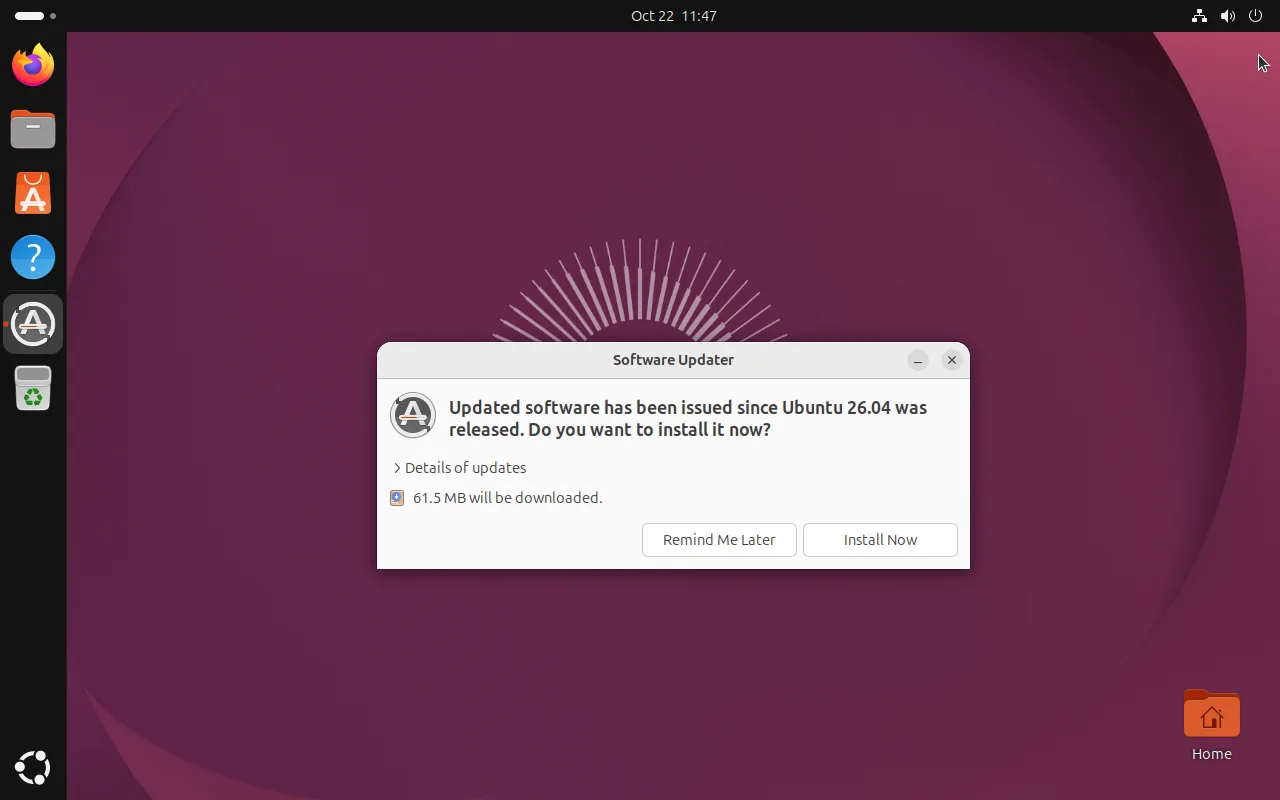
시스템이 자동으로 “Software Updater” 알림을 띄울 수 있습니다. 안내에 따라 업데이트를 설치하세요.
명령줄 방법
# Update the software source list
sudo apt update

# Upgrade all installed packages
sudo apt upgrade -y

# Full upgrade (handles dependency changes)
sudo apt full-upgrade -y

# Clean up unnecessary old packages
sudo apt autoremove -y
업데이트가 끝나면 재부팅하는 것이 좋습니다.
sudo reboot드라이버 설치
ubuntu-drivers 도구 사용
Ubuntu 26.04를 새로 설치하면 Software & Updates / Additional Drivers 그래픽 도구가 기본으로 포함되지 않습니다. 대신 명령줄 감지 도구부터 사용하세요.
# Check recommended proprietary drivers
ubuntu-drivers devices

# Automatically install recommended drivers
sudo ubuntu-drivers autoinstall
레거시 그래픽 드라이버 관리 진입점이 여전히 필요하다면 Software & Updates를 설치하세요.
sudo apt install software-properties-gtkNVIDIA GPU 드라이버
NVIDIA 개별 GPU가 있다면 독점 드라이버를 설치하는 것을 강력히 권장합니다.
# Check the recommended driver version
ubuntu-drivers devices

# Auto-install the recommended driver
sudo ubuntu-drivers autoinstall

# Or manually specify the version reported by ubuntu-drivers devices
sudo apt install nvidia-driver-XXX
설치 후 재부팅이 필요합니다.
기타 일반 드라이버
- Wi-Fi 드라이버: 대부분 내장되어 있습니다. 무선 어댑터가 작동하지 않는다면 먼저
ubuntu-drivers devices를 실행해 권장 드라이버가 있는지 확인하세요. - 프린터 드라이버: Ubuntu에는 CUPS 인쇄 시스템이 포함되어 있으며, 대부분의 프린터는 연결만 하면 바로 작동합니다.
- 블루투스: 보통 추가 드라이버가 필요하지 않습니다.
언어 및 입력 방법
언어 팩 완성
설치 중에 네트워크에 연결되어 있지 않았다면 언어 팩이 불완전할 수 있습니다.
# Install complete Chinese language packs
sudo apt install language-pack-zh-hans language-pack-gnome-zh-hans
또는 GUI에서: 설정 -> 시스템 -> 지역 및 언어 -> 설치된 언어 관리 -> “언어 설치/제거”를 클릭합니다.
중국어 입력기 설치
Ubuntu 26.04는 기본으로 중국어 병음 입력기가 미리 설치된 iBus 입력 방법 프레임워크를 사용합니다. 더 많은 선택지가 필요하다면:
Fcitx5 (권장)
# Install Fcitx5 and Chinese input method
sudo apt install fcitx5 fcitx5-chinese-addons fcitx5-config-qt

# Set Fcitx5 as the default input method
im-config -n fcitx5
변경 사항을 적용하려면 로그아웃했다가 다시 로그인하세요.
소프트웨어 미러 구성
로컬 미러 소스를 사용하면 소프트웨어 설치와 업데이트 속도를 크게 높일 수 있습니다.
# Back up the original source list
sudo cp /etc/apt/sources.list.d/ubuntu.sources /etc/apt/sources.list.d/ubuntu.sources.bak

# Use the Tsinghua mirror (you can also choose Alibaba Cloud, USTC, etc.)
# Only the hostname is replaced; (cn\.)? matches cn.archive.ubuntu.com, and the http/https protocol is left unchanged
sudo sed -i -E 's|(cn\.)?archive.ubuntu.com|mirrors.tuna.tsinghua.edu.cn|g' /etc/apt/sources.list.d/ubuntu.sources
sudo sed -i -E 's|security.ubuntu.com|mirrors.tuna.tsinghua.edu.cn|g' /etc/apt/sources.list.d/ubuntu.sources

# Update the index
sudo apt update
멀티미디어 코덱 설치
설치 중에 멀티미디어 코덱 옵션을 선택하지 않았다면 직접 설치할 수 있습니다.
sudo apt install ubuntu-restricted-extras이 패키지에는 MP3, MP4, AVI 같은 일반적인 형식의 디코더와 Microsoft 핵심 글꼴이 포함되어 있습니다.
권장 필수 소프트웨어
브라우저
Ubuntu 26.04에는 Firefox가 기본으로 설치되어 있습니다. Chrome이 필요하다면:
# Download and install Google Chrome
wget https://dl.google.com/linux/direct/google-chrome-stable_current_amd64.deb
sudo dpkg -i google-chrome-stable_current_amd64.deb
sudo apt install -f  # Fix dependencies
오피스 스위트
LibreOffice는 보통 미리 설치되어 있습니다. WPS Office가 필요하다면:
# Download the Linux version from the WPS website, then install
sudo dpkg -i wps-office_*.deb
sudo apt install -f
개발 도구
# Git
sudo apt install git

# Visual Studio Code
sudo snap install code --classic

# Basic compilation toolchain
sudo apt install build-essential
시스템 유틸리티
# System monitor
sudo apt install htop

# Disk usage analyzer
sudo apt install baobab

# Clipboard manager (CopyQ, keeps history)
sudo apt install copyq

# Screenshot tool (GNOME has a built-in one: Ctrl+Shift+Print)

# Timeshift system backup (strongly recommended)
sudo apt install timeshift
Snap 및 Flatpak
Ubuntu 26.04는 기본으로 Snap 앱 스토어를 사용합니다. Flatpak을 사용하려면:
# Install Flatpak
sudo apt install flatpak gnome-software-plugin-flatpak

# Add the Flathub repository
flatpak remote-add --if-not-exists flathub https://dl.flathub.org/repo/flathub.flatpakrepo
재부팅하면 소프트웨어 센터에서 Flatpak 앱을 찾아볼 수 있습니다.
방화벽 활성화
Ubuntu에는 기본으로 비활성화된 UFW(Uncomplicated Firewall)가 포함되어 있습니다.
# Enable the firewall
sudo ufw enable

# Check status
sudo ufw status

# Allow SSH (if remote access is needed)
sudo ufw allow ssh
시스템 스냅샷 생성
모든 기본 구성을 마쳤다면 Timeshift로 첫 번째 시스템 스냅샷을 만드는 것이 좋습니다.
sudo timeshift --create --comments "Initial configuration after installation complete"이렇게 해두면 나중에 시스템에 문제가 생겨도 이 깨끗한 상태로 빠르게 되돌릴 수 있습니다.
이제 Ubuntu 26.04 시스템을 일상적으로 사용할 준비가 끝났습니다!
관련 기사
- 설치 후 체크리스트 — 주요 설치 후 구성 항목을 빠르게 확인하는 체크리스트
- 중국 지역 빠른 설정 — 소프트웨어 미러, 입력 방법, 글꼴을 한 번에 구성
- 입력 방법, 중국어 글꼴, 스크린샷, 화면 녹화 — IBus 및 Fcitx5 중국어 입력 방법 상세 구성
- 소프트웨어 설치 — APT, Snap, Flatpak 및 deb 패키지 설치 방법
- NVIDIA GPU — NVIDIA 드라이버 설치, CUDA 구성 및 문제 해결