Screenshots and Screen Recording
Ubuntu 26.04 ships the GNOME Shell screenshot UI: one press of Print Screen gives you region selection, window capture and screen recording without installing anything. The standalone gnome-screenshot app is deprecated, so ignore the older tutorials that still mention it.
Interactive capture
Press Print Screen and the screen dims while the capture tool appears:
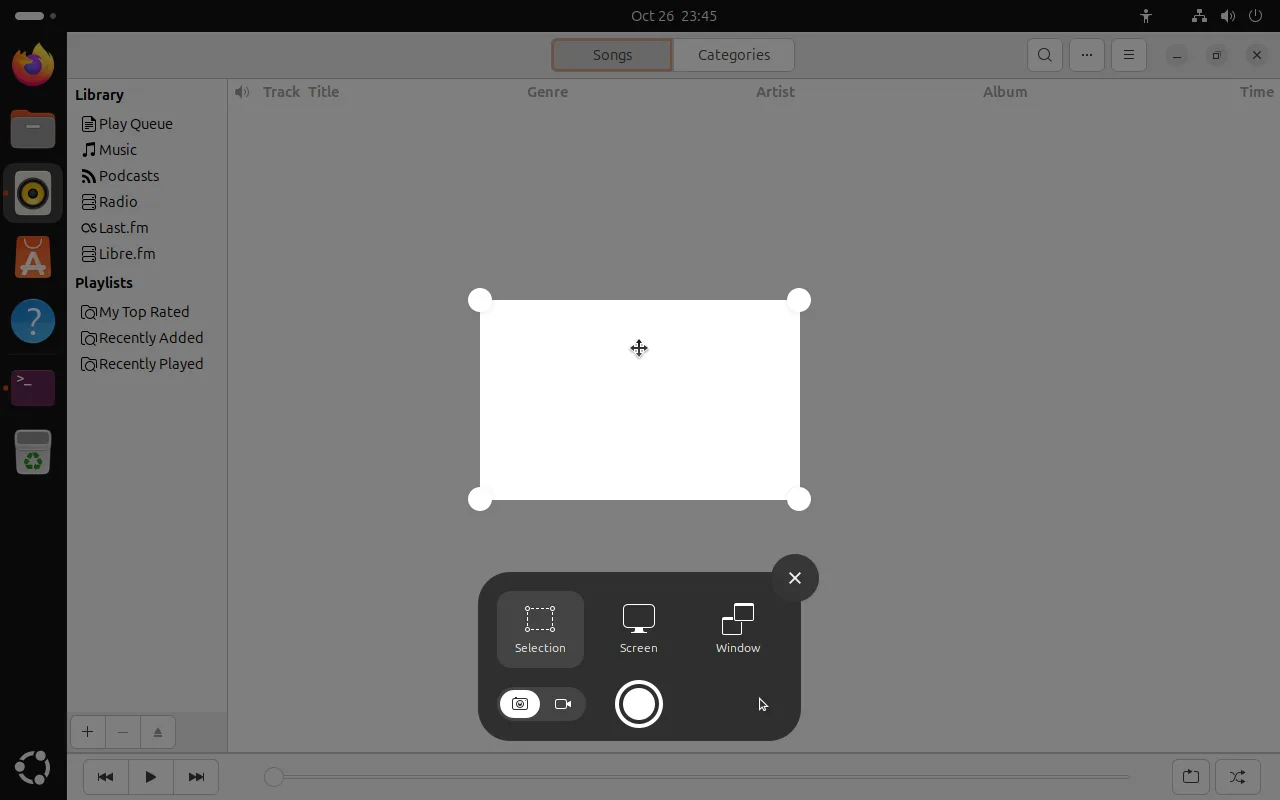
There are three modes plus two easily missed toggles:
| Element | What it does |
|---|---|
| Selection | Drag out any region; the corner handles resize it |
| Screen | Capture the whole display |
| Window | Click a window to capture just that one |
| Camera icon (left) | Switch to screenshot mode |
| Camcorder icon (left) | Switch to recording mode |
| Large round button (right) | Confirm — capture or start recording |
Pick a region and press the round button to finish.
Where did the screenshot go?
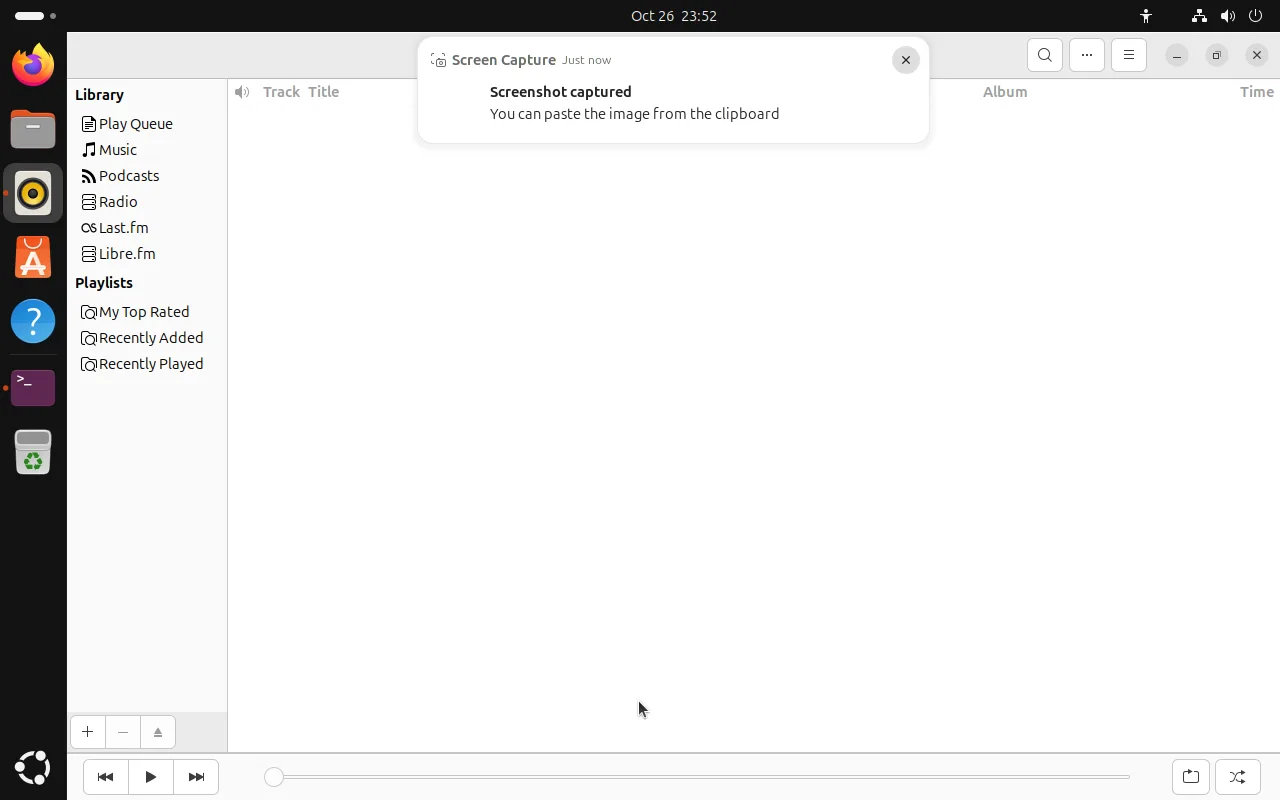
A capture does two things at once: copies to the clipboard and saves a file. A notification confirms it in the top right:
- Saved to:
~/Pictures/Screenshots/(~/图片/截图/on a Chinese system) - File name:
Screenshot from 2026-10-26 23-34-05.png, so sorting by date works - PNG and lossless, which is what you want for UI text
The notification only mentions the clipboard, which makes it look like nothing was saved. The file is already in Pictures/Screenshots — check the file manager.
Shortcut reference
Settings → Keyboard → View and Customize Shortcuts → Screenshots lists and edits these bindings (26.04 defaults, verified on a real install):
| Shortcut | Action |
|---|---|
Print Screen | Open the interactive capture UI |
Shift + Print Screen | Capture the whole screen directly |
Alt + Print Screen | Capture the active window directly |
Shift + Ctrl + Alt + R | Start / stop interactive recording |
To use your own combination, click the pencil icon on the right of an entry and press the new keys.
Recording the screen
No extra software needed. There are two ways in:
- Press
Print Screen, then click the camcorder icon in the bottom left to switch to recording mode - Press
Shift + Ctrl + Alt + Rdirectly
While recording, a red dot indicator appears in the top bar; press the same shortcut again (or click the indicator) to stop.
- Format: WebM
- Location: the Videos folder (it contains a
Screencastssubdirectory) - Good for short clips of a single step; use OBS for long sessions
Annotation and more advanced tools
The built-in tool only captures and records. For arrows, text and blurring, install one of these:
# Flameshot: annotate right after capturing, ideal for tutorial images
sudo apt install flameshot

# OBS Studio: multiple sources, streaming, long recordings
sudo apt install obs-studio
Once Flameshot is installed you can bind it to a key in Settings → Keyboard; it does not take over Print Screen by default.
FAQ
Print Screen does nothing?
Another tool probably grabbed the shortcut (Flameshot, or a screenshot plugin from an input method). Check Settings → Keyboard → View and Customize Shortcuts and look at the Screenshots group; any entry that was changed shows a “modified” marker.
Can’t find the saved screenshot?
Look in ~/Pictures/Screenshots/. If the folder does not exist yet, every capture so far only reached the clipboard — confirm one capture in the UI to create it.
The context menu disappears when I press the shortcut
Opening the capture UI closes open menus. For those cases a delayed capture works better: install Flameshot and set a 3-second delay, or record a short clip and grab a frame from it.
Related
- Input methods and fonts — input method and font setup for Chinese
- File manager, settings, workspaces — overview of Files and the Settings app
- Software installation — install more tools with APT, Snap or Flatpak