Local LLMs
Running large language models (LLMs) locally protects data privacy, reduces API costs, and provides offline inference capabilities. Ubuntu 26.04 offers an excellent environment for running local LLMs. This article covers the most popular local model runtime tools and recommended models.
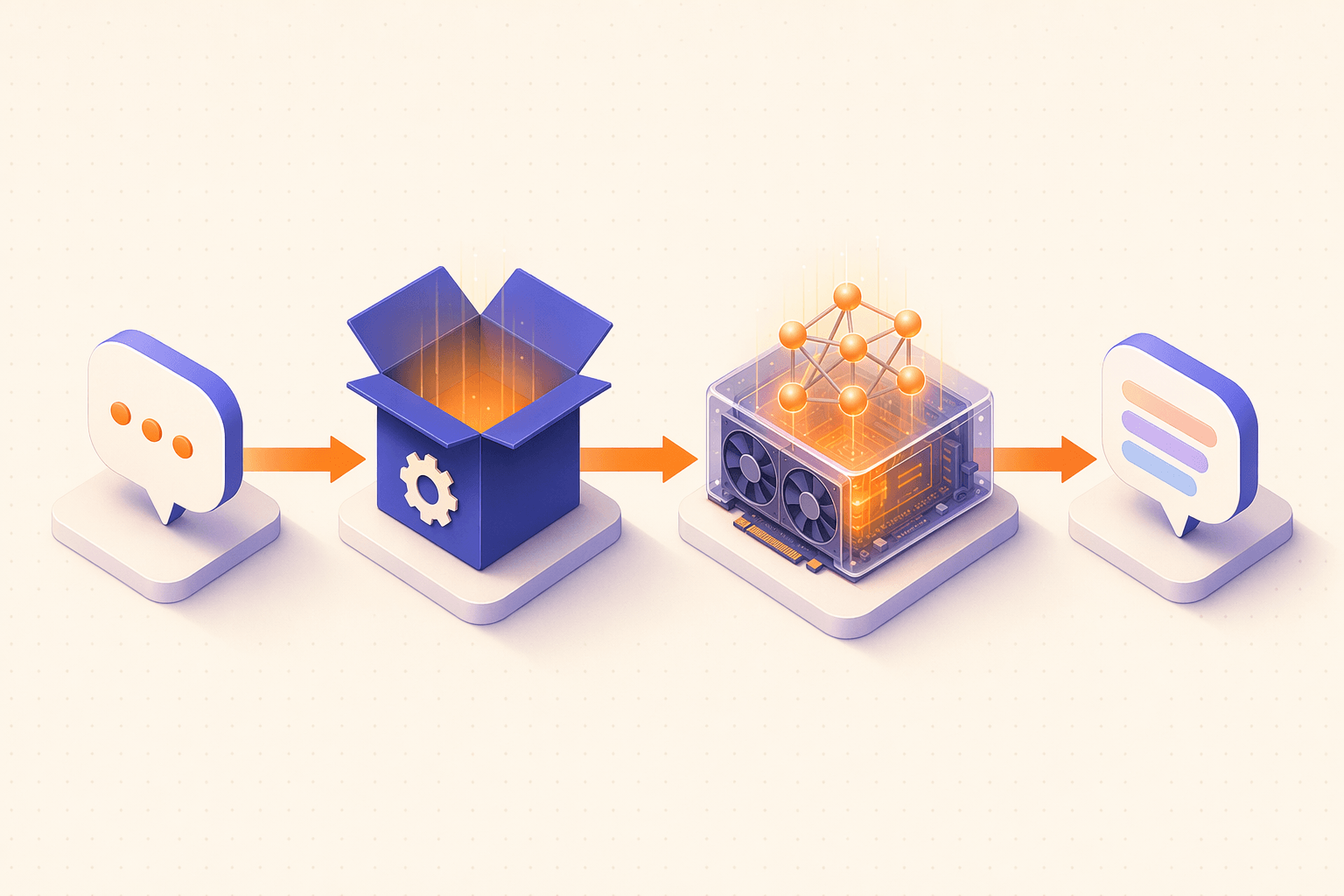
Send a piece of text from your terminal, a WebUI, or any OpenAI-compatible client.
Ollama / llama.cpp / LM Studio routes the request to the model and manages context.
Weights sit in VRAM and stream tokens out; pure-CPU works but is roughly an order of magnitude slower.
Tokens flow back as they are generated. Data never leaves your machine.
Want to build a dedicated “AI box” appliance instead of running on your desktop? In June 2026 Canonical published an official reference based on Ubuntu Core 26 + the gemma4 snap, exposing an OpenAI-compatible API (:8336/v1) and a WebUI (:8337). Minimum bootstrap is documented in Post-release News.
Ollama
Ollama is currently the most popular local model runtime framework, offering an extremely simple installation and usage experience with support for a wide range of open-source models.
Install Ollama
# One-click installation (recommended)
curl -fsSL https://ollama.com/install.sh | bash

# Verify installation
ollama --version

# Check Ollama service status
systemctl status ollama
# Manual installation (if the auto script doesn't work)
# Download and extract the official tgz package to /usr
curl -L https://ollama.com/download/ollama-linux-amd64.tgz -o /tmp/ollama-linux-amd64.tgz
sudo tar -C /usr -xzf /tmp/ollama-linux-amd64.tgz
# Create Ollama user
sudo useradd -r -s /bin/false -m -d /usr/share/ollama ollama
# Create systemd service (use sudo tee to write a root-owned file)
sudo tee /etc/systemd/system/ollama.service > /dev/null << 'EOF'
[Unit]
Description=Ollama Service
After=network-online.target
[Service]
ExecStart=/usr/bin/ollama serve
User=ollama
Group=ollama
Restart=always
RestartSec=3
Environment="HOME=/usr/share/ollama"
[Install]
WantedBy=default.target
EOF
sudo systemctl daemon-reload
sudo systemctl enable ollama
sudo systemctl start ollamaPull and Run Models
# Pull a model (downloads the model file on first run)
ollama pull llama3.2
ollama pull qwen2.5:14b
ollama pull deepseek-r1:14b

# Run a model and start chatting
ollama run llama3.2

# Run a specific model size
ollama run qwen2.5:7b
ollama run qwen2.5:14b
ollama run qwen2.5:32b

# List downloaded models
ollama list

# View model details
ollama show qwen2.5:14b

# Delete a model
ollama rm llama3.2
API Usage
Ollama provides a REST API compatible with the OpenAI format, listening by default on http://localhost:11434.
# Generate text (Generate API)
curl http://localhost:11434/api/generate -d '{
  "model": "qwen2.5:14b",
  "prompt": "Explain Python decorators",
  "stream": false
}'

# Chat API (conversational format)
curl http://localhost:11434/api/chat -d '{
  "model": "qwen2.5:14b",
  "messages": [
    {"role": "system", "content": "You are a Linux expert"},
    {"role": "user", "content": "How do I check the Ubuntu system version?"}
  ],
  "stream": false
}'

# OpenAI-compatible API
curl http://localhost:11434/v1/chat/completions -d '{
  "model": "qwen2.5:14b",
  "messages": [
    {"role": "user", "content": "Hello"}
  ]
}'

# List available models
curl http://localhost:11434/api/tags
Python Usage Example
# Ubuntu 26.04 blocks system-wide pip installs (PEP 668); install inside a virtual environment
python3 -m venv ~/ollama-env
source ~/ollama-env/bin/activate

# Install the ollama Python library
pip install ollama
import ollama
response = ollama.chat(model='qwen2.5:14b', messages=[
{'role': 'user', 'content': 'Write a quicksort algorithm in Python'},
])
print(response['message']['content'])Configure Ollama
# Change model storage path (default: ~/.ollama/models)
sudo systemctl edit ollama
# Add the following:
# [Service]
# Environment="OLLAMA_MODELS=/data/ollama/models"

# Allow remote access (default is local only)
sudo systemctl edit ollama
# [Service]
# Environment="OLLAMA_HOST=0.0.0.0:11434"

# Set GPU layers
# Environment="OLLAMA_NUM_GPU=999"

# Restart service to apply changes
sudo systemctl restart ollama
Recommended Models
| Model | Parameters | VRAM Required | Highlights |
|---|---|---|---|
qwen2.5:7b | 7B | 6 GB | Strong Chinese ability, good for daily chat |
qwen2.5:14b | 14B | 10 GB | Comprehensive Chinese, good coding |
qwen2.5-coder:7b | 7B | 6 GB | Focused on code generation and understanding |
llama3.2:3b | 3B | 3 GB | Lightweight, fast |
llama3.1:8b | 8B | 6 GB | Excellent English ability |
deepseek-r1:14b | 14B | 10 GB | Strong reasoning |
mistral:7b | 7B | 6 GB | European model, multilingual |
gemma2:9b | 9B | 7 GB | Google open-source model |
phi3:14b | 14B | 10 GB | Microsoft research model |
nomic-embed-text | - | 1 GB | Text embedding model |
For Chinese language users, the Qwen 2.5 series is highly recommended. The 7B version suits GPUs with 8GB VRAM, while the 14B version performs excellently with 12GB VRAM. For code-only tasks, qwen2.5-coder is the best choice.
LM Studio
LM Studio is a cross-platform graphical local model management tool that provides model downloading, chat, and a local API server.
Download and Install
# Download LM Studio AppImage from the official site (get the latest link at https://lmstudio.ai/download)
# Replace the URL below with the actual download link from the official site
wget -O ~/LMStudio.AppImage "<latest AppImage download link from the official site>"

# Add execute permission
chmod +x ~/LMStudio.AppImage

# Move to application directory
mkdir -p ~/.local/bin
mv ~/LMStudio.AppImage ~/.local/bin/lmstudio

# Create desktop shortcut
# Note: .desktop Exec does not expand variables like $HOME; you must use an absolute path
# Replace YOUR_USER below with your username (the output of echo $USER)
cat > ~/.local/share/applications/lmstudio.desktop << 'EOF'
[Desktop Entry]
Name=LM Studio
Comment=Local LLM Management
Exec=/home/YOUR_USER/.local/bin/lmstudio --no-sandbox
Icon=lmstudio
Type=Application
Categories=Development;Science;
StartupNotify=true
EOF

# Launch LM Studio
~/.local/bin/lmstudio
Install Dependencies
# LM Studio may require FUSE support (AppImage dependency)
sudo apt install -y libfuse2t64
GUI Usage
LM Studio’s main feature areas:
- Discover — Search and download GGUF models from Hugging Face
- Chat — Load a model and chat with it
- Developer — Start a local API server, compatible with the OpenAI API format
Start the local API server:
In the Developer tab, load a model, then click “Start Server”. The default address is http://localhost:1234.
# Test LM Studio's local API
curl http://localhost:1234/v1/chat/completions -d '{
  "model": "loaded-model-name",
  "messages": [
    {"role": "user", "content": "Hello"}
  ]
}'LM Studio stores model files in the ~/.lmstudio/models/ directory. Large model files can consume tens of GB, so ensure you have sufficient disk space.
llama.cpp
llama.cpp is the most low-level local inference engine, written in pure C/C++, supporting both CPU and GPU inference with extremely high performance. Ollama’s backend also uses llama.cpp.
Build from Source
# Install build dependencies
sudo apt install -y build-essential cmake git

# Clone the repository
git clone https://github.com/ggerganov/llama.cpp.git
cd llama.cpp

# Method 1: CPU-only build
cmake -B build
cmake --build build --config Release -j$(nproc)

# Method 2: Enable CUDA GPU acceleration (recommended, requires CUDA)
cmake -B build -DGGML_CUDA=ON
cmake --build build --config Release -j$(nproc)

# Method 3: Enable Vulkan GPU acceleration (works with AMD/Intel/NVIDIA)
sudo apt install -y libvulkan-dev
cmake -B build -DGGML_VULKAN=ON
cmake --build build --config Release -j$(nproc)
Download Models
# llama.cpp uses GGUF format models
# Download from Hugging Face (Qwen 2.5 7B example)
mkdir -p ~/models
wget -O ~/models/qwen2.5-7b-q4_k_m.gguf \
  "https://huggingface.co/Qwen/Qwen2.5-7B-Instruct-GGUF/resolve/main/qwen2.5-7b-instruct-q4_k_m.gguf"
Command-Line Inference
# Interactive chat
./build/bin/llama-cli \
  -m ~/models/qwen2.5-7b-q4_k_m.gguf \
  -ngl 999 \
  -c 4096 \
  --interactive \
  --color

# Start an OpenAI-compatible API server
./build/bin/llama-server \
  -m ~/models/qwen2.5-7b-q4_k_m.gguf \
  -ngl 999 \
  -c 4096 \
  --host 0.0.0.0 \
  --port 8080

# Parameter explanations:
# -m        Model file path
# -ngl 999  Use as many GPU layers as possible
# -c 4096   Context length
# --host    Listen address
# --port    Listen port
# Test the API server
curl http://localhost:8080/v1/chat/completions -d '{
"model": "qwen2.5",
"messages": [{"role": "user", "content": "Hello"}]
}'GGUF model files come in different quantization levels. Q4_K_M is a good balance between quality and file size, Q5_K_M offers higher quality but larger files, and Q8_0 is close to original precision. For everyday use, Q4_K_M or Q5_K_M is recommended.
Jan
Jan is an open-source local AI chat client with a friendly graphical interface, supporting multiple models and local inference.
Install Jan
# Download Jan deb package
wget -O /tmp/jan.deb "https://app.jan.ai/download/latest/linux-amd64-deb"

# Install
sudo dpkg -i /tmp/jan.deb
sudo apt install -f -y

# Launch Jan
jan
# Or install via AppImage
wget -O ~/jan.appimage "https://app.jan.ai/download/latest/linux-amd64-appimage"
chmod +x ~/jan.appimage
~/jan.appimageInterface Usage
Jan’s main features:
- Hub — Browse and download recommended models (one-click download)
- Chat — Chat with models, supports multiple sessions
- Settings — Configure model parameters, GPU acceleration, etc.
Jan supports importing custom GGUF model files. Place model files in the ~/jan/models/ directory.
# Jan default data directory
ls ~/jan/

# Manually import a model
mkdir -p ~/jan/models/my-custom-model
cp ~/models/qwen2.5-7b-q4_k_m.gguf ~/jan/models/my-custom-model/
Jan also provides a local API server. When enabled, it’s compatible with the OpenAI API format, defaulting to port 1337.
Open WebUI
Open WebUI is a feature-rich web interface for interacting with local models, supporting connections to Ollama and OpenAI-compatible APIs.
Docker Deployment
# Ensure Docker is installed
sudo apt install -y docker.io docker-compose-v2
sudo usermod -aG docker $USER
newgrp docker

# Method 1: Connect to local Ollama (most common)
docker run -d \
  --name open-webui \
  --network=host \
  -v open-webui:/app/backend/data \
  -e OLLAMA_BASE_URL=http://127.0.0.1:11434 \
  --restart always \
  ghcr.io/open-webui/open-webui:main

# Method 2: Bundled Ollama version (all-in-one deployment)
docker run -d \
  --name open-webui \
  --gpus all \
  -p 3000:8080 \
  -v ollama:/root/.ollama \
  -v open-webui:/app/backend/data \
  --restart always \
  ghcr.io/open-webui/open-webui:ollama
Access Open WebUI
# After deployment, open your browser
# Method 1 (--network=host): http://localhost:8080
# Method 2 (-p 3000:8080): http://localhost:3000

# First visit requires creating an admin account
Connect to Ollama
If Ollama and Open WebUI are on the same machine:
# Ensure Ollama is running
systemctl status ollama

# Open WebUI connects to http://localhost:11434 by default
# Confirm the Ollama URL in Open WebUI Settings > Connections
Docker Compose Deployment
# Create project directory
mkdir -p ~/open-webui && cd ~/open-webui

# Create docker-compose.yml
cat > docker-compose.yml << 'EOF'
services:
  open-webui:
    image: ghcr.io/open-webui/open-webui:main
    container_name: open-webui
    ports:
      - "3000:8080"
    environment:
      - OLLAMA_BASE_URL=http://host.docker.internal:11434
      - WEBUI_AUTH=true
    volumes:
      - open-webui-data:/app/backend/data
    extra_hosts:
      - "host.docker.internal:host-gateway"
    restart: always

volumes:
  open-webui-data:
EOF

# Start the service
docker compose up -d

# View logs
docker compose logs -f open-webuiOpen WebUI supports multi-user accounts, conversation history, model management, RAG (Retrieval-Augmented Generation), web search, and other advanced features. It’s one of the best web interfaces for individuals and teams using local models.
Model Comparison Table
Here’s a comparison of current mainstream open-source models to help you choose:
| Model Series | Developer | Available Sizes | Chinese | Coding | Reasoning | License |
|---|---|---|---|---|---|---|
| Llama 3.1/3.2 | Meta | 1B/3B/8B/70B/405B | Fair | Good | Good | Llama 3 |
| Qwen 2.5 | Alibaba | 0.5B-72B | Excellent | Excellent | Good | Apache 2.0 |
| Qwen 2.5 Coder | Alibaba | 1.5B-32B | Good | Outstanding | Good | Apache 2.0 |
| DeepSeek R1 | DeepSeek | 1.5B-671B | Excellent | Excellent | Outstanding | MIT |
| DeepSeek V3 | DeepSeek | 671B | Excellent | Excellent | Excellent | MIT |
| Mistral | Mistral | 7B/8x7B/8x22B | Fair | Good | Good | Apache 2.0 |
| Gemma 2 | 2B/9B/27B | Fair | Good | Good | Gemma | |
| Phi-3/4 | Microsoft | 3.8B-14B | Fair | Good | Good | MIT |
| Yi | 01.AI | 6B/9B/34B | Excellent | Good | Good | Apache 2.0 |
| GLM-4 | Zhipu AI | 9B | Excellent | Good | Good | Custom |
Use Case Recommendations
Daily Chinese chat (8GB VRAM):
ollama pull qwen2.5:7b
ollama run qwen2.5:7b
Code writing assistance (12GB VRAM):
ollama pull qwen2.5-coder:14b
ollama run qwen2.5-coder:14b
Complex reasoning tasks (16GB+ VRAM):
ollama pull deepseek-r1:14b
ollama run deepseek-r1:14b
CPU-only (no GPU):
ollama pull qwen2.5:3b
ollama run qwen2.5:3b

# Or use an even smaller model
ollama pull llama3.2:1b
ollama run llama3.2:1bIf you’re unsure which model to choose, starting with qwen2.5:7b is a good bet. It has strong Chinese language ability, moderate resource usage, and is suitable for most everyday use cases. For coding tasks, qwen2.5-coder:14b performs close to commercial models.