Resolution, Scaling and Multiple Monitors
Text too small to read, everything huge and cramped, or a second monitor you cannot arrange — all of it is handled in Settings → Displays, and Ubuntu 26.04 needs no extra tools for it.
Opening the display settings
Click the status menu in the top right and pick the gear icon, or press Super and search for “Settings”, then choose Displays on the left:
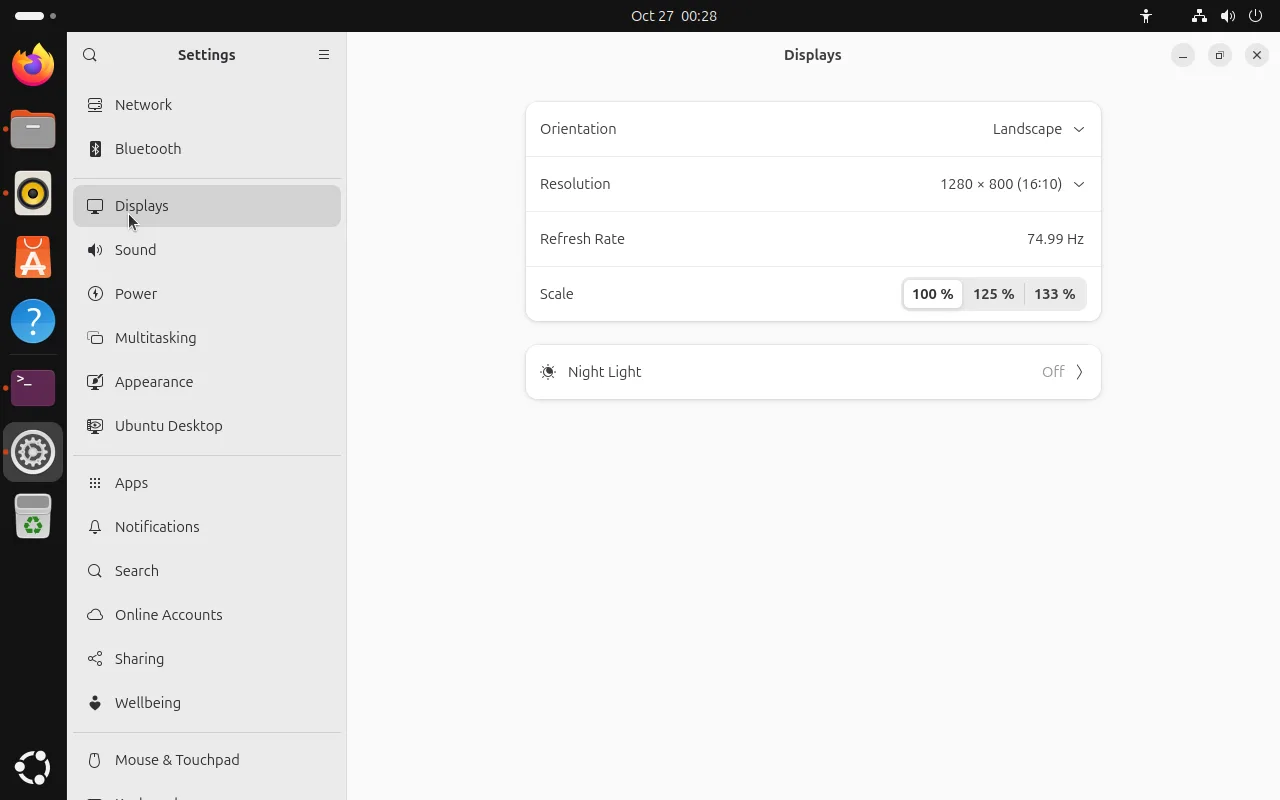
The four rows are orientation, resolution, refresh rate and scaling.
Resolution and refresh rate
Open the Resolution list and you get every mode the panel reports, annotated with the aspect ratio (16:10 and so on). Pick one and confirm with “Keep Changes” in the top right. If you do not confirm within 30 seconds the change is reverted — that is the safety net against picking a mode that leaves you with a black screen.
Refresh rate works the same way; high-refresh panels list 60 Hz, 120 Hz and friends. When an external monitor does not offer the mode you expect, the cable or port usually cannot carry the bandwidth (4K at 60 Hz needs HDMI 2.0 or better).
From a terminal:
# Show outputs, the current resolution and every available mode
xrandr --query
Scaling: text too small or UI too large
Scaling is the standard fix for “everything is tiny on this high-DPI screen”. 26.04 exposes 100% / 125% / 133% out of the box, with no experimental switch to flip:
| Situation | Suggested |
|---|---|
| 1080p monitor, text too small | 125% |
| 2K / 4K laptop panel | 125% or 133% |
| Everything looks oversized | back to 100% |
The change applies immediately, but apps that are already running need a restart to pick it up — otherwise half the window ends up at the old size.
Older X11 applications can look blurry at fractional scaling because they do not follow the Wayland scale. Instead of scaling, try Settings → Accessibility → Large Text, or keep those apps at 100%.
Multiple monitors
Once a second screen is connected, an arrangement diagram appears at the top of the panel with one box per display:
- Drag the boxes to set their relative position; the pointer crosses between screens exactly as arranged
- Select one box to give that monitor its own resolution, refresh rate and scale
- “Primary display” decides where the top bar, notifications and new windows appear
- Mirroring shows the same content on both, which is what you want for a projector
On Wayland each screen keeps its own scale factor (say 133% on the laptop, 100% on the external panel); under X11 the scale is global. That is why external monitors finally stopped looking blurry for a lot of people after upgrading.
Virtual machines and remote desktop sessions usually expose a single output, so there is no dual-monitor screenshot here — that diagram only appears with a second real display output.
Night Light
Night Light sits at the bottom of the panel. It warms the colour temperature so the screen is easier on the eyes in the evening. By default it follows sunset to sunrise; you can also set a manual schedule and adjust the strength.
Night Light needs a real display output. In a virtual machine it reports that Night Light is unavailable, which is expected — a virtual GPU cannot change colour temperature.
FAQ
Fewer resolutions than the panel supports
Check the graphics driver first (see NVIDIA drivers). Also note that X11 sessions are weaker at mode switching than Wayland; the gear icon on the login screen switches session type.
One app ignored the new scale
Restart that app. GNOME’s own apps follow immediately, while Electron and Java applications need a process restart.
The external monitor shows nothing
Try another cable first — a surprising number of “no signal” cases are the cable or adapter. Then check the input source on the monitor. In a VM, make sure a second virtual display was actually added.
Related
- Network, Bluetooth, printers — the other hardware panels in Settings
- Power management — laptop battery and suspend settings
- Desktop basics — getting around GNOME 50