Where Did the Disk Space Go: Analysis and Cleanup
“Disk almost full” happens to every Ubuntu user eventually. The annoying part is that df tells you it is full but not what filled it. This is the reproducible order: locate first, then clean.
Step 1: how full is it really
df -hLook at the Use% column, mainly for / (the root filesystem) and /home if it is a separate partition.
The graphical equivalent is the usage bar in Disks after selecting a partition, or the capacity bar at the bottom of the file manager sidebar.
Step 2: find the big directories
du can compute it, but you end up guessing one level at a time:
# Size of each subdirectory here, largest first
du -h --max-depth=1 . | sort -hr | head
Disk Usage Analyzer (baobab) scans the whole tree at once and is much easier to read:
sudo apt install baobab
baobab /home/$USER
It starts scanning the path you pass it, and when it finishes you get this:
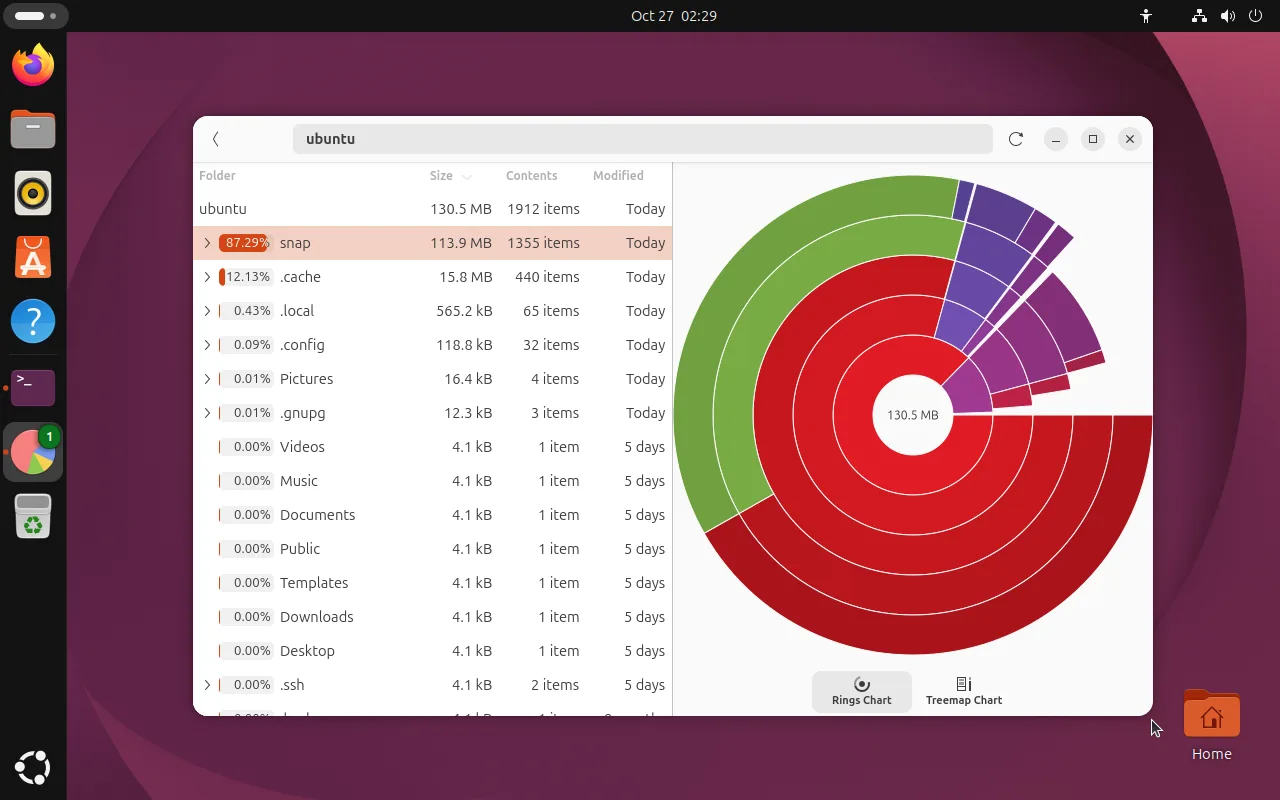
How to read it:
- The left list is sorted by size; expand rows arrow by arrow and you get exact paths, which beats clicking rings
- Treemap Chart in the bottom right turns proportions into areas, so the biggest block is obvious at a glance
- This screenshot is a freshly installed VM where
snapalone is 87% — not a bug: every Snap app keeps several revisions
Scanning ~ takes seconds, scanning / takes minutes because it walks the whole system. Start with ~, and only scan / when that does not explain the usage.
Step 3: clean the usual suspects
Old Snap revisions
Snap keeps the last few revisions so you can roll back, and each is a complete copy of the program. That is the 87% above.
# Keep 2 revisions instead of the default 3
sudo snap set system refresh.retain=2

# Remove every disabled revision
sudo snap list --all | awk '/disabled/{print $1, $3}' | while read name rev; do
  sudo snap remove "$name" --revision="$rev"
done
Downloaded packages
# Empty /var/cache/apt/archives
sudo apt clean

# Drop dependencies nothing needs any more
sudo apt autoremove --purge
systemd journal
journalctl logs can grow into several GB:
# Keep at most 200 MB
sudo journalctl --vacuum-size=200M

# Or keep only 7 days
sudo journalctl --vacuum-time=7d
User caches
Browsers, thumbnails and app caches all live in ~/.cache:
du -h --max-depth=1 ~/.cache | sort -hr | headThink before deleting: browser caches refill on demand and usually keep you logged in, while ~/.cache/thumbnails is always safe to remove.
Step 4: when cleaning is not enough
Cleanup buys time; real space means growing or moving:
- Virtual machines: enlarge the virtual disk in the VM settings, then grow the partition (
growpartplusresize2fs) - Physical machines: add a disk and format/mount it — see Disks, mounting, fstab
- Moving data: relocate big directories such as
~/Downloadsor the Docker data root to the new disk and mount them viafstab
FAQ
df says full but du adds up to much less
The classic case: a file was deleted but a process still holds it open, so the space is only freed when that process exits.
# Find deleted files that are still open
sudo lsof +L1 2>/dev/null | head
The usual culprit is a log writer still running; restart the service that owns it (sudo systemctl restart <service>).
“No space left on device” but df shows free space
Probably inode exhaustion, typical with huge numbers of small files (mail spools, container layers).
# Check inode usage
df -i
If IUse% is at 100% this is your problem; the fix is the same kind of cleanup, except what you need to delete is many small files, not large ones.
Automating the cleanup
systemd-tmpfiles already clears /tmp and some caches. For a scheduled apt cache clean, add a cron entry:
# Clean the apt cache every Sunday at 03:00
0 3 * * 0 root /usr/bin/apt clean
Save it as /etc/cron.d/apt-clean.
Related
- Disks, mounting, fstab — partitions, formatting and mounting at boot
- Performance monitoring — htop and the system monitor
- journalctl — log size and rotation