GNOME Extensions and Desktop Customisation
Out of the box Ubuntu 26.04 offers little customisation — Settings can change the wallpaper and the accent colour, nothing more. Icons, cursors, top-bar buttons or making the Dock show only the current screen’s windows all need two extra tools: Tweaks and Extension Manager.
Neither tool ships with 26.04
Verified on a 26.04 install:
| Package | What it does | Preinstalled? |
|---|---|---|
gnome-tweaks | Fonts, cursor, icons, window buttons, startup apps | No (repo version 49.0-1) |
gnome-shell-extension-manager | Browse, install and toggle extensions | No (repo version 0.6.5-1) |
gnome-shell-extension-prefs | The older, more limited Extensions panel | No (repo version 50.1) |
Most customisation guides assume one of these is already there, so on 26.04 the menus they point at simply do not exist.
Installing
sudo apt install gnome-tweaks gnome-shell-extension-managerSearch for “Tweaks” or “Extension Manager” afterwards, or run them directly:
gnome-tweaks
gnome-extensions-app
What Tweaks can change
The left column lists everything: Fonts, Appearance, Sound, Mouse & Touchpad, Keyboard, Windows, Startup Applications.
The Appearance page looks like this:
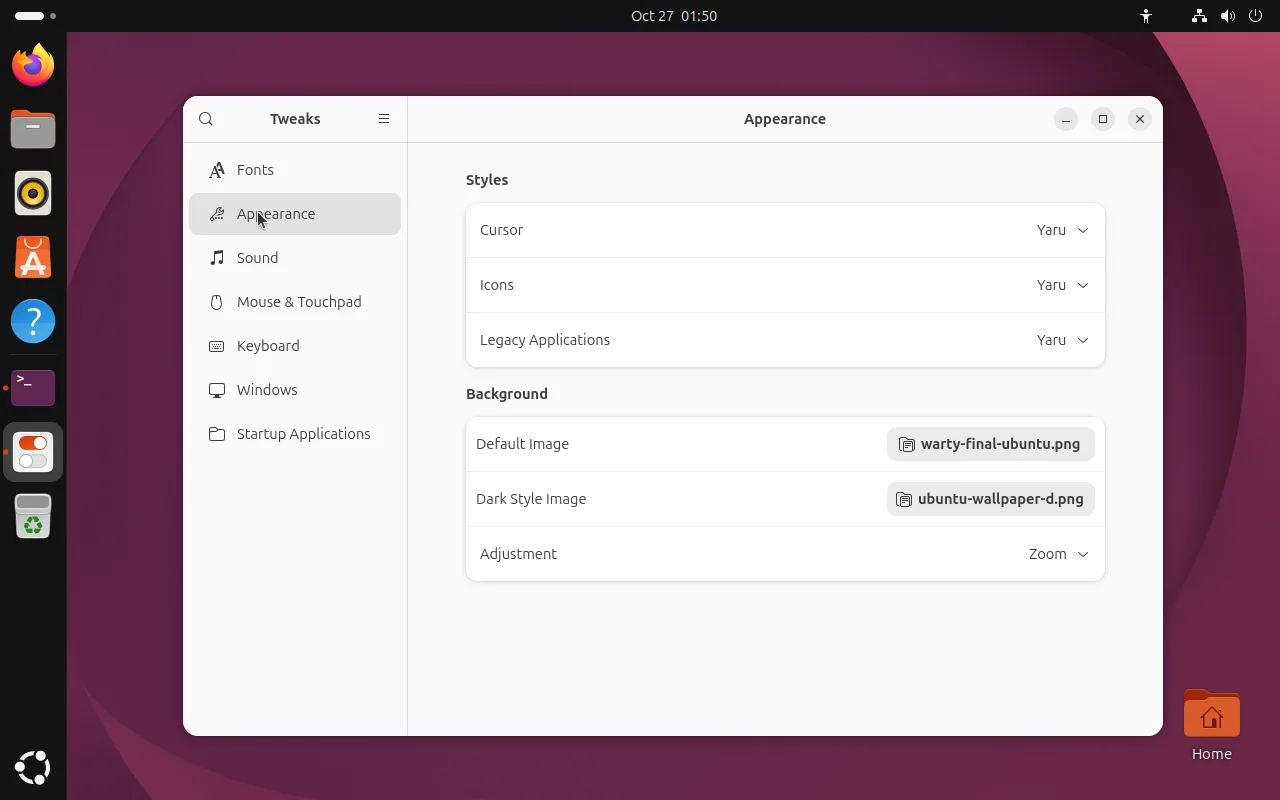
Older guides show an Appearance page with Applications and Shell theme dropdowns. Those are gone. GNOME 50 retired the old GTK theming path, leaving only “Legacy Applications” for programs that have not migrated.
The settings people actually use:
| Goal | Where |
|---|---|
| Different cursor or icon pack | Appearance → Styles |
| UI font, monospace font, text scaling | Fonts |
| Turn off middle-click paste | Mouse & Touchpad |
| Window buttons on the left or right | Windows → Titlebar Buttons |
| Battery percentage or seconds in the clock | Top Bar |
| Manage startup programs | Startup Applications |
Scaling the UI font to 1.25× is an alternative fix for tiny text on high-DPI screens; it pairs well with display scaling.
Extension Manager: adding features
Extension Manager has two tabs, Installed and Browse.
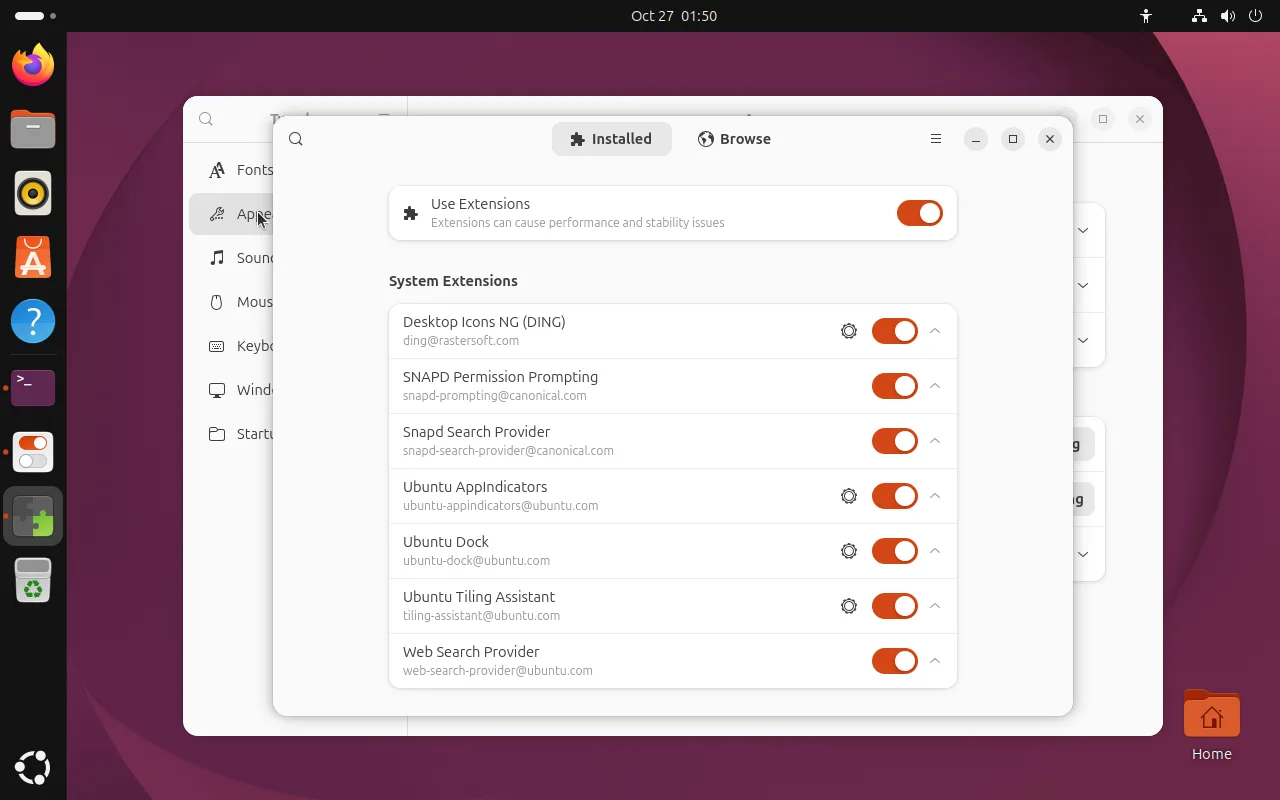
These are Ubuntu’s preinstalled system extensions; turning one off changes desktop behaviour immediately:
| Extension | Role | If you disable it |
|---|---|---|
| Desktop Icons NG (DING) | Icons on the desktop | Desktop files and shortcuts disappear |
| Ubuntu AppIndicators | Tray icon support | Tray apps such as WeChat or Telegram lose their icons |
| Ubuntu Dock | The left dock | The dock disappears |
| Ubuntu Tiling Assistant | Window tiling helpers | Dragging a window to the edge no longer snaps |
| Snap Search Provider / SNAPD Permission Prompting | Snap plumbing | App Center search and permission prompts are affected |
To add third-party extensions, switch to Browse and install from there — no need to fiddle with extensions.gnome.org in a browser.
The app says it itself: extensions can cause performance and stability issues. An extension is third-party code loaded into the GNOME Shell process, and a badly written one can freeze or crash the whole desktop. Install deliberately, and disable extensions first when something breaks.
Using a third-party desktop theme
Because the theme picker is gone, shell themes now go through an extension:
- Install the User Themes extension from Extension Manager
- Extract the downloaded shell theme into
~/.themes/(create it if missing) - Reopen Tweaks → Appearance and the Shell theme dropdown appears
GTK application themes (“Legacy Applications”) can still be picked directly; themes live on gnome-look.org .
FAQ
The extension is installed but nothing happened
On Wayland most extensions apply immediately; if not, log out and back in. Some extensions suggest Alt + F2 then r to restart the shell, but that only works in an X11 session.
Clicking “install” on the website does nothing
That path needs the browser bridge. On 26.04 just install from the Browse tab of Extension Manager; if you really want the website workflow, install gnome-browser-connector.
gnome-tweaks: command not found
The package is not installed. After apt install gnome-tweaks the binary is gnome-tweaks — not tweaks.
How do I undo everything?
Disable third-party extensions, set the three Appearance dropdowns back to Yaru, and delete ~/.themes/. For a sledgehammer, dconf reset -f /org/gnome/ resets all GNOME settings, not just the cosmetic ones — use with care.
Related
- Resolution, scaling and multiple monitors — the other fix for small text on high-DPI screens
- GNOME 50 tour — what each part of the desktop is called
- Default app changes in 26.04 — which tools are no longer preinstalled