System Monitor: Resources and Processes in a GUI
When you do not feel like typing htop, or you want history curves instead of a single number, use the graphical tool: System Monitor.
It is not preinstalled on 26.04
sudo apt install gnome-system-monitorSearch for “System Monitor” afterwards, or run:
gnome-system-monitorSome releases ship it by default; 26.04 does not, and the shell answers with “command not found, but can be installed with…”. Same situation as htop needing a manual install.
The Resources tab: trends
The app opens on Resources:
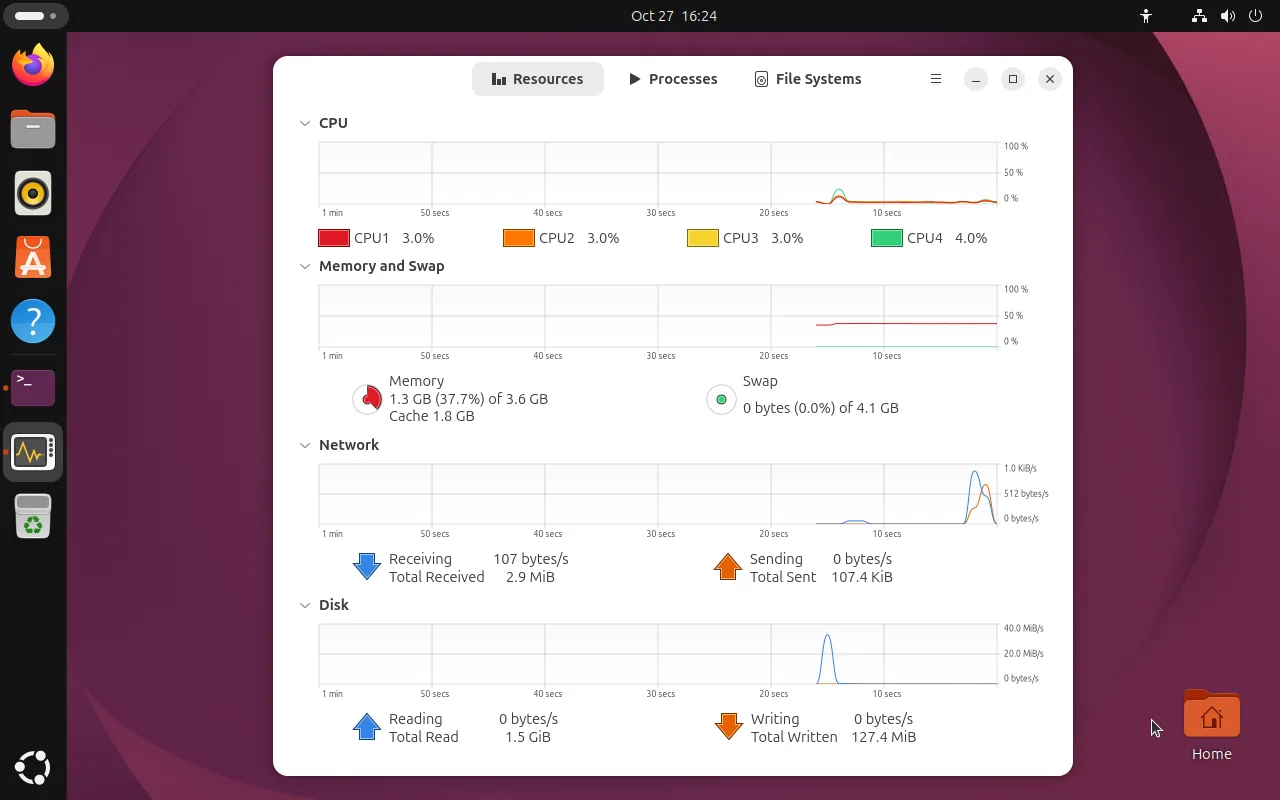
Four groups, all covering the last minute with roughly one sample per second:
| Area | What it tells you |
|---|---|
| CPU | One line per core, with current percentages underneath |
| Memory and Swap | Used memory of total, plus the cache figure — easy to misread, see the FAQ |
| Network | Live send/receive rate and the totals since boot |
| Disk | Read/write rate and cumulative bytes; spikes when installing or copying |
A small spike at the right edge is normal: opening the monitor itself reads from disk and uses CPU.
The Processes tab: who is using what
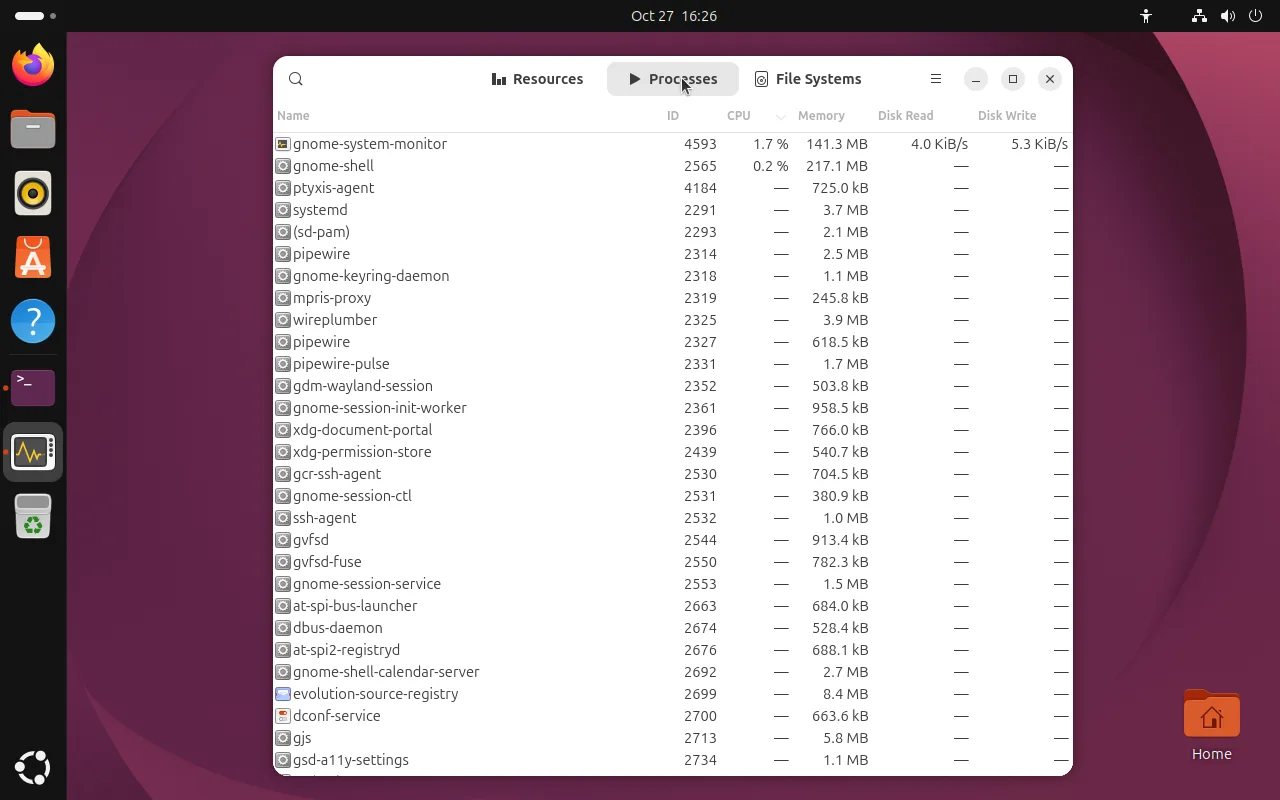
Everyday moves:
- Sort by a column: click “Memory” to find the memory hog, “Disk Write” to find the IO hog
- Search box: type
firefox,chromeand the list filters as you type - Right-click a row to End, Force Kill, change priority, or open the containing folder
- Status column: sleeping, running, zombie — a zombie means the parent never reaped it; restart the parent
When killing a stuck app, try End first (SIGTERM, the program can still save state) and only then Force Kill (SIGKILL, unsaved data is lost).
The File Systems tab: per-mount usage
The third tab lists every mount point with its usage, effectively a graphical df -h. When space runs low, the bars here tell you which filesystem is full, and disk space analysis explains why.
System Monitor versus htop
| Situation | Pick |
|---|---|
| SSH into a server, just need the top CPU consumer | htop |
| You want the trend of the last minute | System Monitor |
| Low-bandwidth remote session | htop (plain text) |
| You want a screenshot for someone else | System Monitor |
Both read the same /proc data and show the same numbers, so pick whichever you like.
FAQ
Memory usage keeps climbing — is it a leak?
Look at the cache number under Memory and Swap first. Linux uses free RAM as file cache and reclaims it on demand, so high “used” figures are expected. The screenshot showing 1.3 GB used and 1.8 GB cache is a healthy state.
To judge a real leak, watch whether an individual process’s memory keeps growing, not the system total.
Swap is heavily used — should I worry?
Swap being touched means physical memory was short, so inactive pages were moved out. Occasional use is harmless, but sustained swap traffic (busy disk graph, sluggish desktop) means you genuinely need more RAM.
A process will not die
Try End, then Force Kill; if that still fails it is a permissions problem — system processes need root:
sudo kill -9 <PID>The PID is the “ID” column in the Processes tab.
Can I keep the graphs?
System Monitor only keeps the last minute and does not persist data. For history use sar (sysstat) or something like Prometheus with node_exporter.
Related
- Performance monitoring (htop) — the terminal equivalent
- Disk space analysis and cleanup — when a filesystem fills up
- systemd services — how processes relate to services