Chinese Input Methods: A Practical Setup Guide
Chinese input is the step where most new Ubuntu users get stuck, and the usual failure is not “no input method installed” — it is installed but never enabled. This page goes from “make it type” to “make it pleasant”.
What 26.04 actually ships
Measured on a Chinese-language 26.04 desktop:
dpkg -l | awk '/^ii/ && $2 ~ /ibus-libpinyin|fcitx5/ {print $2, $3}'| Component | Version | State |
|---|---|---|
ibus-libpinyin | 1.16.5 | installed (IBus Intelligent Pinyin) |
ibus-table-wubi | 1.17.16 | installed (Wubi) |
fcitx5 + fcitx5-chinese-addons | 5.1.19 / 5.1.12 | installed, not running |
So the framework and the engines are already there. What is missing is registering Chinese as an input source:
gsettings get org.gnome.desktop.input-sources sourcesIf that prints only [('xkb', 'us')], you are in the classic “cannot type Chinese” state — the system has no Chinese input source at all.
Step 1: add the Chinese input source
Open Settings → Keyboard and find the Input Sources section. On a fresh install it lists only English:
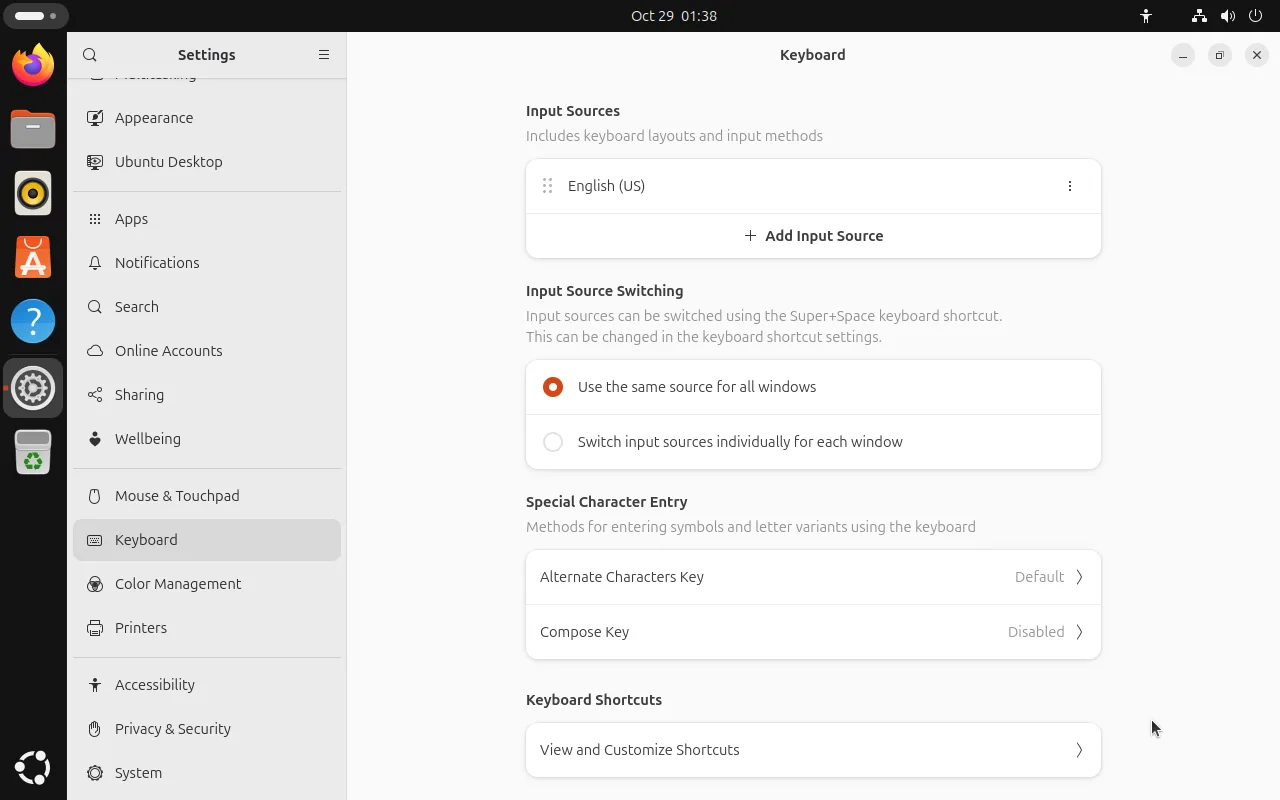
Click + Add Input Source, type chinese in the search box, and pick Chinese (Intelligent Pinyin). The same list also offers m17n engines (pinyin, bopomofo, cangjie, quick) — most people only need the first one.
After adding, the list has two entries and an input-source indicator appears in the top bar (en / 中).
Faster: Super + Space cycles between input sources. When the indicator shows the Chinese character, typed letters go to the candidate window instead of the document.
Step 2: prove it works
Open any text field and press Super + Space until the indicator changes, then type nihao:
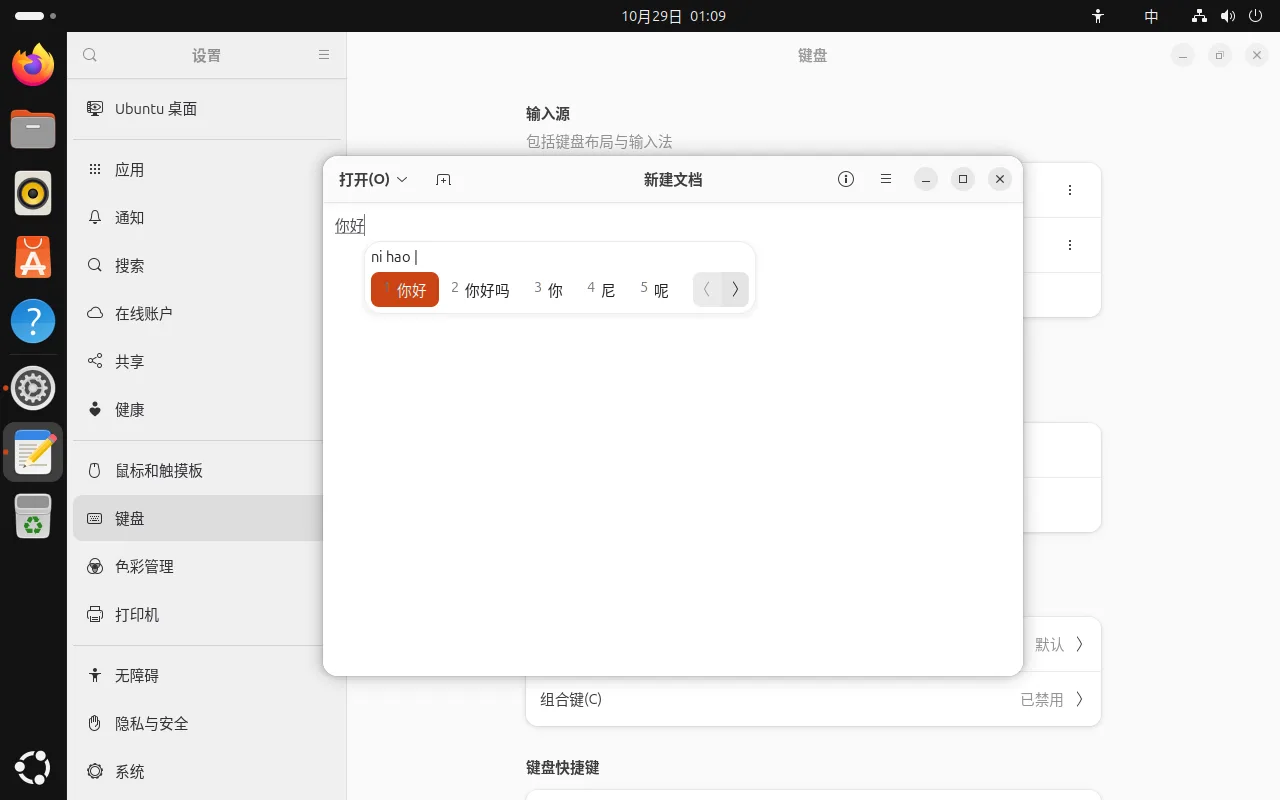
Common operations:
| Action | Key |
|---|---|
| Switch input source | Super + Space |
| Toggle Chinese/English | Shift (the IBus Pinyin default) |
| Pick candidate N | number keys 1–9 |
| Page forward/back | - / = (or the arrows on the popup) |
| Commit first candidate | space |
| Toggle Chinese punctuation | Ctrl + . |
Tuning the dictionary
The Pinyin preferences are not in Settings; run:
ibus-setupor right-click the indicator → Preferences. The settings worth touching:
- Fuzzy pinyin — turn it on if you mix up zh/z, ch/c, sh/s or the -n/-ng endings; first-candidate accuracy improves noticeably
- Traditional/Simplified conversion — needed only if you type traditional
- Cloud input — better coverage, but it sends what you type to a server; leave it off if that matters
- Candidates per page — default 5, 7–9 is comfortable
Preferences live in dconf and ~/.config/ibus/libpinyin/, while the learned word frequency is cached under ~/.cache/ibus/libpinyin/. Copy that cache to carry your personal dictionary to another machine.
Advanced: the fcitx5 route
If you need Shuangpin, Wubi, Zhengma, RIME or a nicer candidate window, fcitx5 is the alternative framework.
It is already installed but not started
26.04 ships fcitx5 5.1.19 with fcitx5-chinese-addons 5.1.12, but nothing runs it — the desktop uses IBus.
im-config -n fcitx5 does not work under Wayland
This is measured, and it matters because many guides still recommend it:
im-config -n fcitx5 # writes ~/.xinputrcAfter logging out and back in, IBus is still running and fcitx5 never starts:
systemctl --user show-environment | grep -E 'IM_MODULE|XMODIFIERS'
# QT_IM_MODULE=ibus
# XMODIFIERS=@im=ibus     ← still ibus
pgrep -a fcitx5            # nothing
The reason: ~/.xinputrc is only read by X11 sessions. A GNOME Wayland session lets GNOME Shell own input handling (its built-in IBus integration) and never consults that file.
The way that works
All three pieces are required:
- Environment variables — without them applications never load the fcitx frontend
mkdir -p ~/.config/environment.d
cat > ~/.config/environment.d/90-ime.conf <<'EOF'
GTK_IM_MODULE=fcitx
QT_IM_MODULE=fcitx
XMODIFIERS=@im=fcitx
EOF- Autostart — otherwise the daemon never runs
mkdir -p ~/.config/autostart
cat > ~/.config/autostart/fcitx5.desktop <<'EOF'
[Desktop Entry]
Type=Application
Name=Fcitx 5
Exec=fcitx5 -d
X-GNOME-Autostart-Phase=Applications
EOF- Log out and back in, then verify:
fcitx5-remote # any output means the daemon is upAdding the Pinyin engine
The configuration tool is fcitx5-config-qt — note that the package fcitx5-configtool does not exist in the archive, which is why copying old guides fails with “package not found”:
sudo apt install fcitx5-config-qt
fcitx5-config-qt
In the Input Method tab, pick Pinyin (or Shuangpin, Wubi, Zhengma…) from Available Input Methods → Chinese (China) and move it to the left:
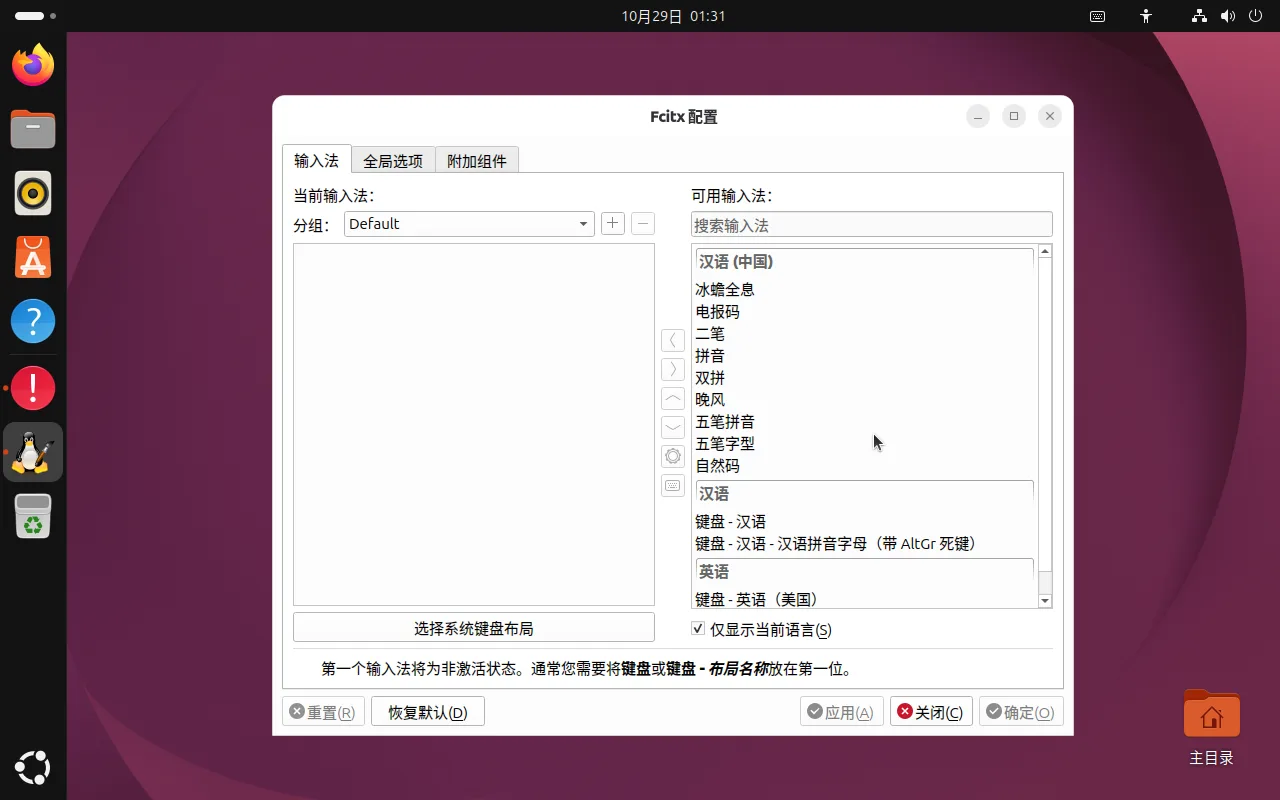
Do not ignore the hint at the bottom: the first input method is treated as inactive, so put “Keyboard — English (US)” first and Pinyin second.
In our test, starting fcitx5 from an SSH session with systemd-run made the config tool report “cannot connect to Fcitx over DBus” — the daemon and the desktop app were in different D-Bus sessions. Start fcitx5 from the desktop (autostart entry or application menu), never from SSH.
Optional engines
| Want | Install | Notes |
|---|---|---|
| Pinyin / Shuangpin / Wubi / Zhengma | fcitx5-chinese-addons (already installed) | the whole list in the screenshot |
| More shape-based tables (Cangjie, Quick…) | fcitx5-table-extra | 5.1.11 and later |
| RIME / Rime Ice | fcitx5-rime (5.1.13) | most flexible dictionaries, needs YAML tuning |
| RIME without leaving IBus | ibus-rime (1.6.0) | the compromise option |
Third-party input methods
Sogou Pinyin for Linux
The official download page (pinyin.sogou.com/linux/) serves sogoupinyin_4.2.1.145 in amd64, arm64, mips64el and loongarch64 builds.
Honest status: the official CDN returned 403 to every download attempt from this network (ime-sec.gtimg.com), so we could not complete an install test. What we can give you is the check that settles it in two seconds:
# Which framework does the package depend on? fcitx = fcitx4, fcitx5 = new framework
dpkg-deb -I sogoupinyin_*.deb | grep Depends

# Are both frameworks available here? (measured on 26.04)
apt-cache policy fcitx fcitx5
26.04 reality (measured):
fcitx      candidate: 1:4.2.9.9-2.1     ← fcitx4 still exists
fcitx5     candidate: 5.1.19-1          ← fcitx5 also present
Both frameworks survive in 26.04, so a package depending on fcitx4 can in principle be installed — but note:
- fcitx4 and fcitx5 cannot both be the active framework; stop fcitx5 before installing a Sogou build that needs fcitx4
- fcitx4-only input methods often show the candidate window in the wrong place under Wayland; switching to an Xorg session is the usual workaround
- re-run
im-configand log out afterwards, or the environment still points at the old framework
Guides that say “uninstall fcitx5, install fcitx4, switch to Xorg” were written for 24.04. Verify with the two commands above before you paste anything.
The alternatives
| Option | How to get it | Who it suits |
|---|---|---|
| IBus Intelligent Pinyin | preinstalled | almost everyone, zero setup |
| fcitx5 Pinyin / Shuangpin / Wubi | preinstalled | Shuangpin, Wubi, better candidate window |
| RIME (Rime Ice) | fcitx5-rime / ibus-rime | people who want to tune dictionaries and schemas |
| Sogou Pinyin | official deb | users who rely on Sogou’s dictionaries; verify compatibility yourself |
Baidu, iFlytek and WeChat keyboard have no official Linux desktop build; what circulates as a “Linux version” is usually an Android port or a repack, not something to put on a machine you rely on.
FAQ
The Chinese language pack is installed but I still cannot type
A language pack (language-pack-zh-hans) provides translations and fonts, not an input method. Go back to Step 1 and add the input source — that is the answer nine times out of ten.
No candidate window, or it does not follow the cursor
Check in order:
# 1. is Chinese actually registered?
gsettings get org.gnome.desktop.input-sources sources

# 2. is the daemon alive?
pgrep -a ibus-daemon

# 3. is it an Electron app (VS Code, Discord…)?
Electron apps do not use the Wayland IME protocol by default; launch them with:
code --enable-wayland-imeor run them under XWayland with --ozone-platform-hint=auto.
Only Pinyin, no Wubi
The Wubi engine (ibus-table-wubi) is installed but never appears automatically. Add it the same way as Step 1, choosing Chinese (Wubi) or Chinese (Wubi Pinyin) from the Chinese list.
Removing extra input sources
Settings → Keyboard → Input Sources, click the ⋮ on the row → Remove. Keep at least one English layout, otherwise some password prompts become impossible to fill.
The switch shortcut conflicts with something
Change it under Settings → Keyboard → Keyboard Shortcuts → View and Customize Shortcuts → Input Sources. Ctrl + Space or Super + \ are common replacements.
Related
- GNOME 50 desktop tour — where the indicator sits
- GNOME extensions and customisation — theming the candidate window
- China setup — timezone, mirrors and the rest